The good news is that Linux has several excellent alternatives that offer the same core features, including multi-threaded downloads, browser integration, download scheduling, and the ability to pause and resume downloads.
To help you find the right tool, we’ve put together a list of 10 download managers that are actively maintained and work well on modern Linux distributions in 2026.
If you’re setting up a fresh Linux system and want a solid terminal-based option alongside a GUI tool, check out our guides on command-line download tools and Axel.
1. XDM – Xtreme Download Manager
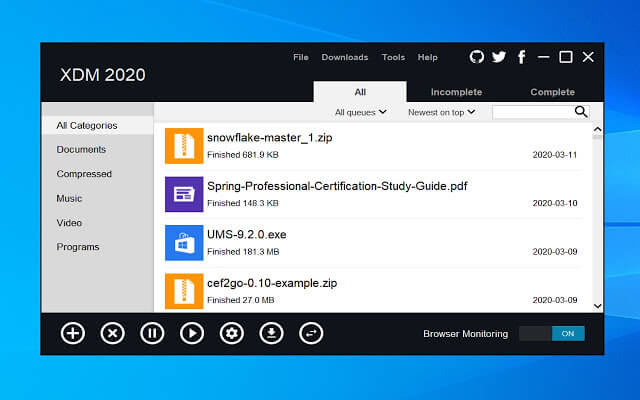
If you’re coming from Windows and looking for something similar to Internet Download Manager (IDM), XDM is usually the first tool people recommend. It offers multi-threaded downloads, browser integration, download scheduling, and support for resuming interrupted downloads.
XDM can split files into multiple segments and download them simultaneously, which often results in noticeably faster download speeds, especially on large files. Once installed, it can automatically capture downloads from popular web browsers, so you don’t have to manually copy and paste links.
Another useful feature is its built-in video downloader, which can detect videos on sites like YouTube and Vimeo and save them directly to your system. It also includes a video converter, making it easy to convert downloaded videos to MP4, MP3, and other common formats.
Why Choose XDM?
- Fast multi-threaded downloads with up to 32 segments per file.
- Pause and resume support for interrupted downloads.
- Automatic browser integration.
- Video downloading from many popular websites.
- Built-in video conversion tools.
- Support for HTTP, HTTPS, FTP, DASH, HLS, and HDS protocols.
- Clipboard monitoring for automatic link detection.
- Available on Linux, Windows, and macOS.
The easiest way to install XDM is to download the latest package from the official website, extract it, and run the installer:
wget https://github.com/subhra74/xdm/releases/download/7.2.11/xdm-setup-7.2.11.tar.xz
tar -xvf xdm-setup-7.2.11.tar.xz
sudo sh install.sh
After installation, launch XDM from your applications menu and install the browser extension when prompted. Once that’s done, downloads will automatically be handed over to XDM whenever you click a download link.
2. DownThemAll
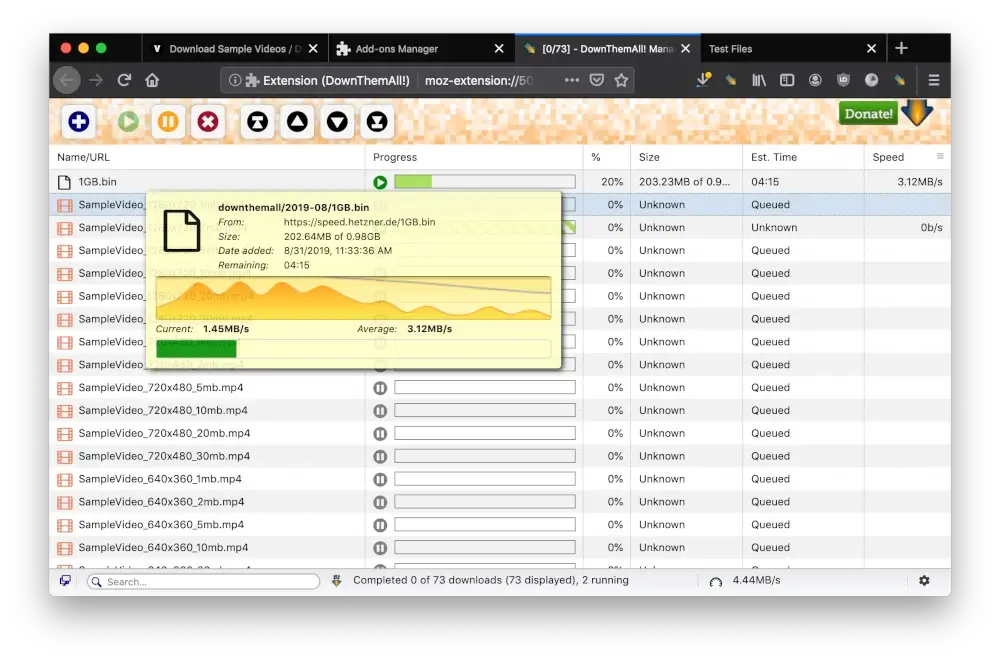
If most of your downloads happen inside Firefox, DownThemAll is worth a look. Unlike traditional download managers, it runs as a browser extension rather than a standalone application, which makes it lightweight, easy to install, and convenient for users who don’t want another program running in the background.
Where DownThemAll really shines is bulk downloading. Instead of downloading files one by one, it can scan an entire web page and collect all available links, images, videos, documents, and other downloadable files. You can then filter the results and download only the items you need.
This makes it especially useful for downloading image galleries, PDF collections, software mirrors, or large groups of files from a single page. It also supports multiple download connections per file, helping improve download speeds on servers that allow it.
Why Choose DownThemAll?
- Downloads all links, images, and media files from a web page.
- Batch downloads hundreds of files with a few clicks.
- Multiple connections per file for faster downloads.
- Smart filters for selecting specific file types.
- Remembers previous download preferences.
- Built-in SHA1 and MD5 checksum verification.
- Works directly inside Firefox.
- Lightweight and easy to use.
Installing DownThemAll is simple, just open Firefox, visit the Firefox Add-ons store, and click Add to Firefox. Once installed, you’ll find new download options in the browser’s context menu and toolbar.
3. uGet Download Manager
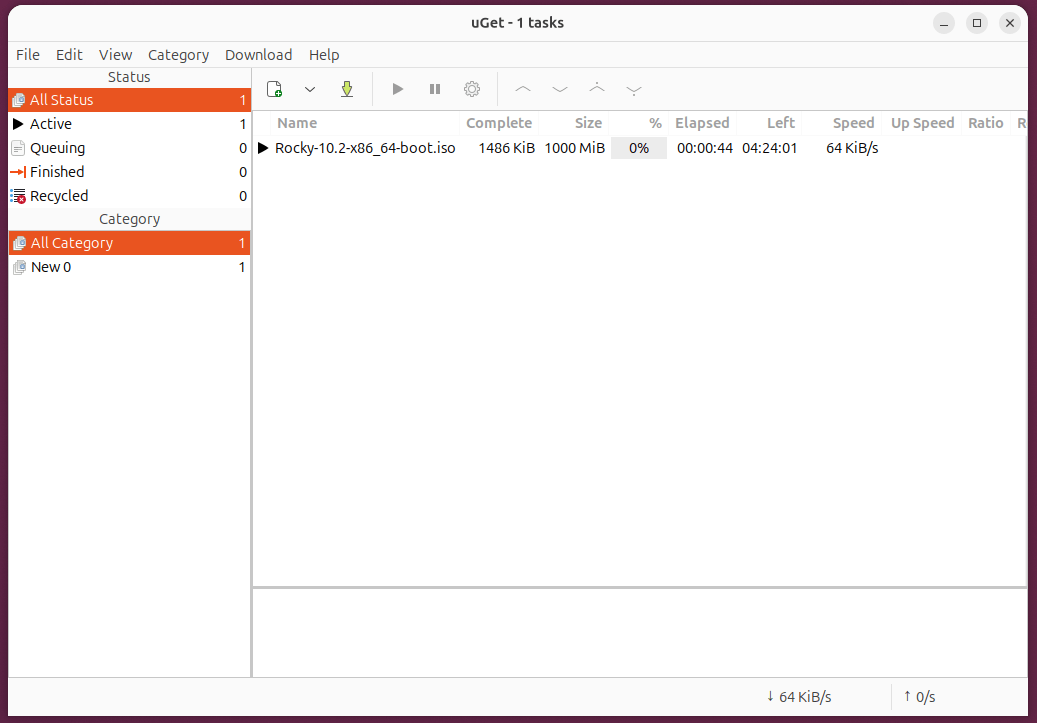
uGet is one of the longest-running download managers available for Linux, and despite its age, it’s still actively used because it’s lightweight, reliable, and easy to set up.
Unlike some modern download managers that focus heavily on flashy interfaces, uGet keeps things simple. It provides all the essential features most users need, including download acceleration, pause and resume support, download scheduling, and clipboard monitoring.
One of uGet’s biggest strengths is its ability to work with aria2, a powerful command-line download engine that provides faster multi-connection downloads, BitTorrent support, and Metalink downloading without significantly increasing resource usage.
Because it uses the GTK toolkit, uGet fits naturally into desktop environments such as GNOME, Cinnamon, MATE, Xfce, and Budgie.
Why Choose uGet?
- Multi-file downloads with per-file or global speed limits.
- Torrent and Metalink file support.
- Anonymous FTP or authenticated FTP download support.
- URL list import from local files.
- Command-line interface support.
- 16 segments per file.
- Clipboard URL monitoring.
- Optional aria2 integration for faster downloads.
- FlashGot add-on integration for Firefox.
To install uGet on Linux, use the following appropriate command for your specific Linux distribution.
sudo apt install uget         [On Debian, Ubuntu and Mint]
sudo dnf install uget         [On RHEL/CentOS/Fedora and Rocky/AlmaLinux]
sudo emerge -a sys-apps/uget  [On Gentoo Linux]
sudo apk add uget             [On Alpine Linux]
sudo pacman -S uget           [On Arch Linux]
sudo zypper install uget      [On OpenSUSE]
sudo pkg install uget         [On FreeBSD]
4. Persepolis Download Manager
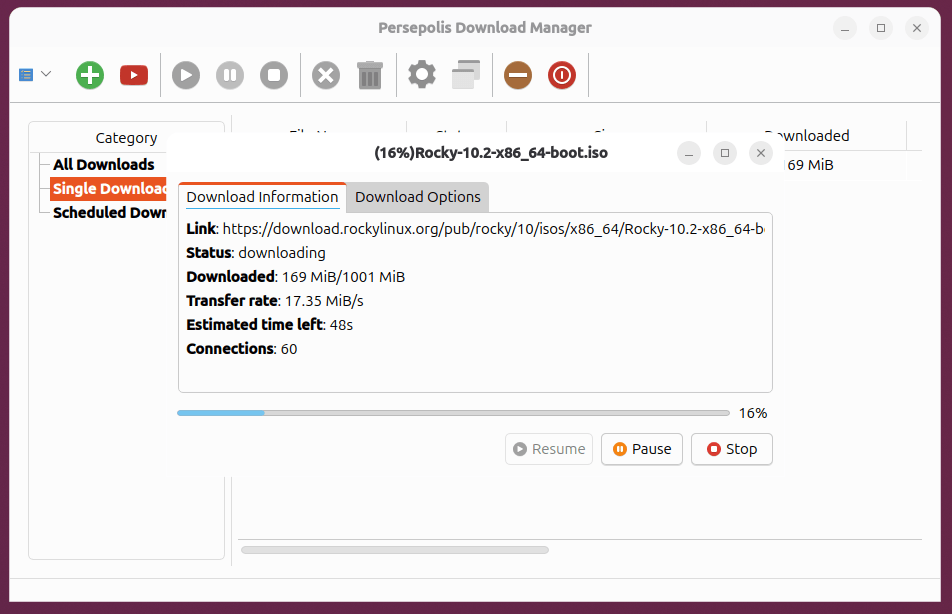
Persepolis started life as a GUI wrapper for aria2, but the latest release (5.x) dropped that dependency entirely, now it runs its own download engine, supports up to 64 simultaneous connections per file, and ships as a standalone Linux bundle you can run with a double-click with no prerequisites needed.
It’s written in Python, open source under GPL, and works on Linux, Windows, macOS, and BSD. Browser extensions are available for Chrome and Firefox.
Features of Persepolis
- Multi-segment downloading (up to 64 connections).
- Download scheduling and queuing.
- SOCKS5 and HTTP proxy support.
- Video finder for YouTube, Vimeo, DailyMotion, and more.
- Standalone Linux bundle with no Python or aria2 install required.
- Browser extension for Chrome and Firefox.
To install Persepolis on Linux, use the following appropriate command for your specific Linux distribution.
sudo apt install persepolis         [On Debian, Ubuntu and Mint]
sudo dnf install persepolis         [On RHEL/CentOS/Fedora and Rocky/AlmaLinux]
sudo emerge -a sys-apps/persepolis  [On Gentoo Linux]
sudo apk add persepolis             [On Alpine Linux]
sudo pacman -S persepolis           [On Arch Linux]
sudo zypper install persepolis      [On OpenSUSE]
sudo pkg install persepolis         [On FreeBSD]
5. Motrix
Motrix is a clean, modern download manager that supports HTTP, FTP, BitTorrent, and Magnet links out of the box, with up to 10 concurrent download tasks. The interface is the nicest of anything on this list; it has a dark mode, well-organized categories, and doesn’t feel like it was designed in 2009.
It’s built on top of aria2 under the hood, so the download engine is solid. If you want something that looks good and handles torrents without a separate torrent client, Motrix is worth installing.

Features of Motrix
- Supports HTTP, FTP, BitTorrent, and Magnet protocols.
- Up to 10 concurrent download tasks.
- Clean interface with dark mode.
- Available as AppImage, Snap, and AUR package.
Download the Motrix AppImage from the official GitHub releases and run it directly:
chmod +x Motrix-*.AppImage
./Motrix-*.AppImage
Or install via Snap:
sudo snap install motrix
6. KGet Download Manager
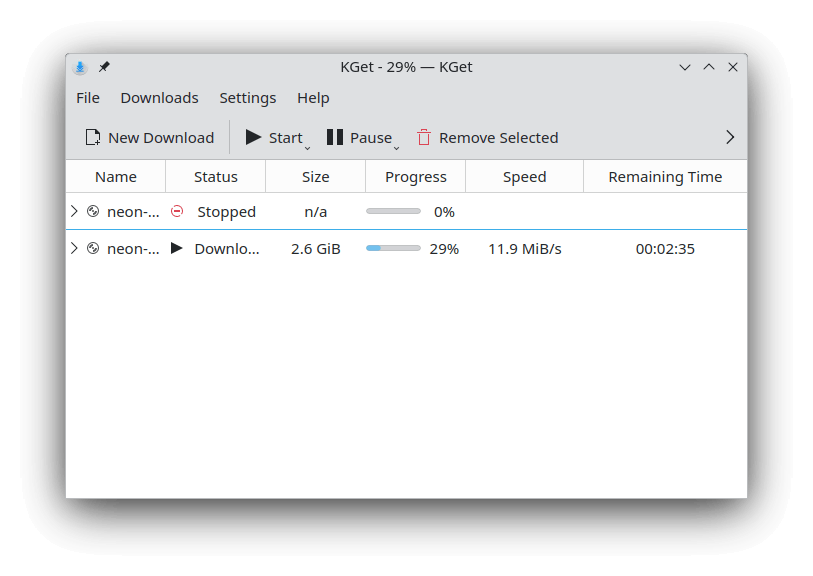
KGet is the default download manager for the KDE Plasma desktop, but it runs fine on GNOME and other environments too. It’s straightforward, handles HTTP and HTTPS downloads well, and has solid Metalink support so you can download the same file from multiple mirrors simultaneously for faster speeds.
If you’re already running a KDE-based distro like Kubuntu or KDE Neon, KGet is probably already installed. On other desktops, it pulls in some KDE framework dependencies, which is worth knowing before you install.
Features of KGet
- FTP and HTTP(S) protocol support.
- Pause and resume support.
- Metalink supports multi-mirror downloads.
- KDE Plasma desktop integration.
To install KGet on Linux, use the following appropriate command for your specific Linux distribution.
sudo apt install kget         [On Debian, Ubuntu and Mint]
sudo dnf install kget         [On RHEL/CentOS/Fedora and Rocky/AlmaLinux]
sudo emerge -a sys-apps/kget  [On Gentoo Linux]
sudo apk add kget             [On Alpine Linux]
sudo pacman -S kget           [On Arch Linux]
sudo zypper install kget      [On OpenSUSE]
sudo pkg install kget         [On FreeBSD]
7. PyLoad Download Manager
PyLoad is designed for unattended downloading. You manage it through a web interface, which means you can queue up downloads on your server, close the browser, and check back later from any device on the network. It’s written in Python, lightweight, and easily extended with plugins.
It works well for one-click hosters and supports a wide range of file hosting services through its plugin system. If you’re running a home server and want something that runs headless, PyLoad is one of the cleaner options.
Features of PyLoad
- Web-based interface accessible from any browser.
- Plugin support for hundreds of file hosting services.
- Lightweight and runs headless.
- Extendable via Python plugins.
Install PyLoad using pip, Python’s package manager. If pip isn’t already on your system, install it first before running this:
pip install pyload-ng
8. JDownloader 2
JDownloader 2 is the tool power users reach for when they’re pulling files from file hosting services. It handles one-click hosters, encrypted container formats (DLC, RSDF, CCF), automatic CAPTCHA solving, and RAR extraction after download, all without you touching it.
It’s written in Java, so it runs on any Linux distro with a JVM. The interface is more complex than most tools on this list, but if you regularly download from services like Mega, Rapidgator, or Google Drive, nothing else comes close. It has around 300 decryption plugins and receives regular automatic plugin updates so things rarely break.
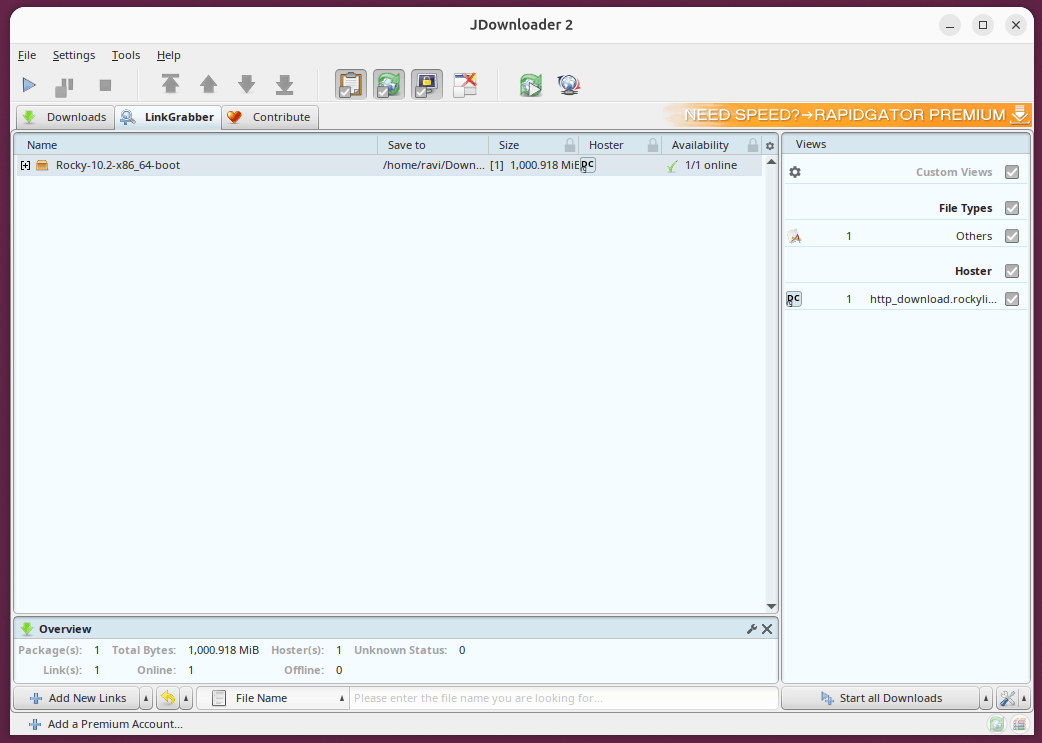
Features of JDownloader 2
- Supports 300+ file hosting services via plugins.
- Automatic CAPTCHA solving with built-in OCR.
- RAR archive extraction with password list search.
- Encrypted container format support (DLC, RSDF, CCF).
- Remote control via my.JDownloader.org from any browser.
- Bandwidth limiting and download scheduling.
- Automatic plugin updates with no manual maintenance.
JDownloader doesn’t have a package in most Linux repos, so install it from the official installer. First, make sure Java is installed. If it’s not on your system yet, install it as shown:
# On Ubuntu/Debian
sudo apt install default-jdk

# On RHEL/Rocky Linux/Fedora
sudo dnf install java-11-openjdk
Then download the JDownloader installer and run it:
chmod +x JDownloader2Setup_unix_nojre.sh
./JDownloader2Setup_unix_nojre.sh
Or install via Flatpak if you have it set up:
flatpak install flathub org.jdownloader.JDownloader
9. AB Download Manager
AB Download Manager is one of the newer tools on this list and is worth paying attention to. Written in Kotlin, it doesn’t use aria2 like most other managers; it has its own download engine that supports multi-segment downloading, browser integration for Chrome and Firefox, and batch downloads with wildcard filtering.
What makes it stand out in 2026 is the cross-platform story. It ships native builds for Linux (DEB and RPM), macOS (with Homebrew support), Windows, and Android, so the same tool follows you across every machine you use. The browser extension captures audio, video, and HLS streams, not just direct file links. Active development with regular releases.
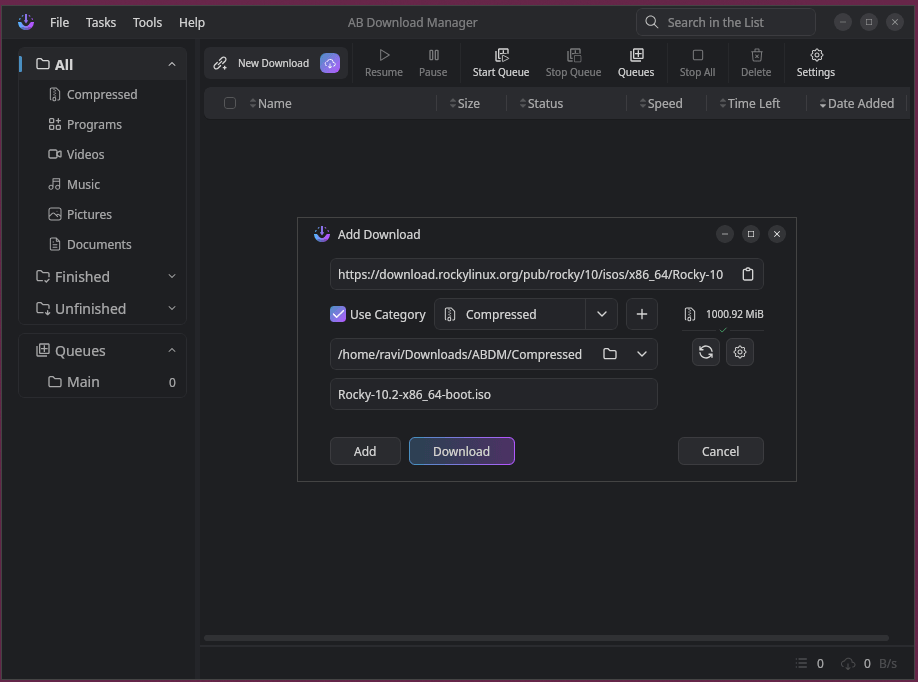
Features of AB Download Manager
- Multi-segment downloading without aria2 dependency
- Browser extension for Chrome and Firefox (captures HLS, audio, video)
- Batch downloads with search and wildcard filtering
- Native Linux, macOS, Windows, and Android builds
- Dark and light themes, including Black theme
- Open source under Apache 2.0 license
Download the .tar.gz from the AB Download Manager GitHub releases and install it as shown:
tar -xvf ABDownloadManager_*.tar.gz
cd ABDownloadManager/bin/
./ABDownloadManager
10. Free Download Manager (FDM)
FDM is not open source, but it’s free and genuinely good. It splits files into segments, downloads them in parallel, handles BitTorrent alongside regular HTTP and FTP downloads, and has solid browser integration.
One thing worth knowing: a 2023 security incident discovered a compromised Linux build had been distributed through FDM’s servers for a period. The issue was addressed, but if you install it, grab it from the official site and verify the checksum. The current builds are clean.
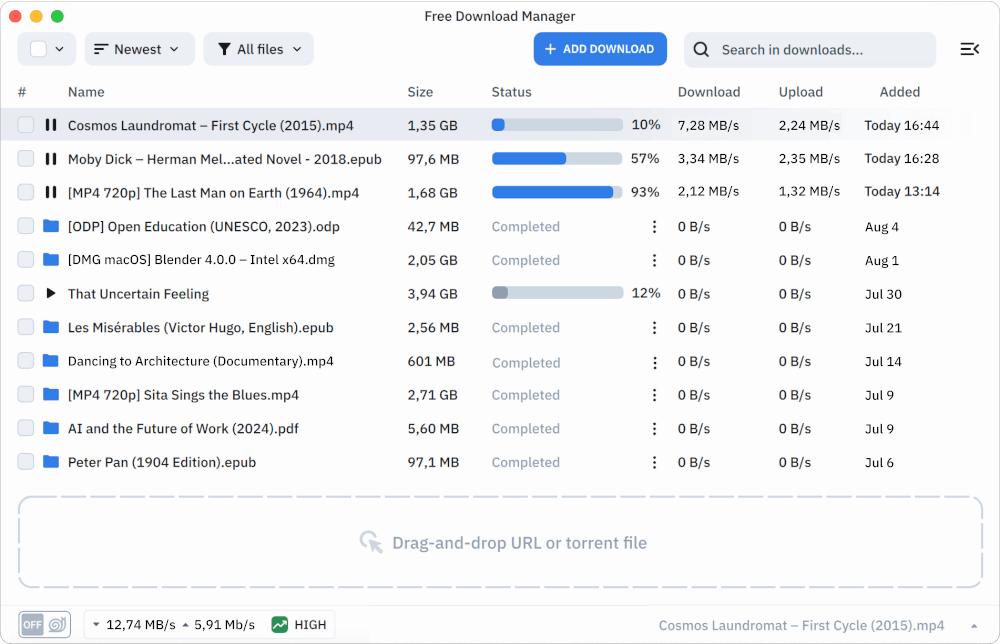
Features of FDM
- Multi-segment file downloading for maximum speed.
- BitTorrent client built in.
- Browser integration for Chrome and Firefox.
- Traffic scheduling and bandwidth controls.
- Available as .deb for Ubuntu/Debian.
- 30 language support.
Download the .deb package and install it:
curl -O https://dn3.freedownloadmanager.org/6/latest/freedownloadmanager.deb
sudo dpkg -i freedownloadmanager.deb
Conclusion
These tools cover the full range of what Linux users actually need from a download manager, whether that’s a GUI that feels like IDM (XDM), a browser extension (DownThemAll), a headless server setup (PyLoad), or something that tears through file hosting services with CAPTCHA solving (JDownloader 2).
Start with XDM if you want the closest thing to a traditional GUI download manager on Linux. If you’re mostly pulling from file hosters or Google Drive, go straight to JDownloader 2, and if you want something modern and actively developed that works across all your devices, AB Download Manager is worth trying.
Have you used any of these on a real system? Or is there one we missed that should be on this list? Drop it in the comments below.