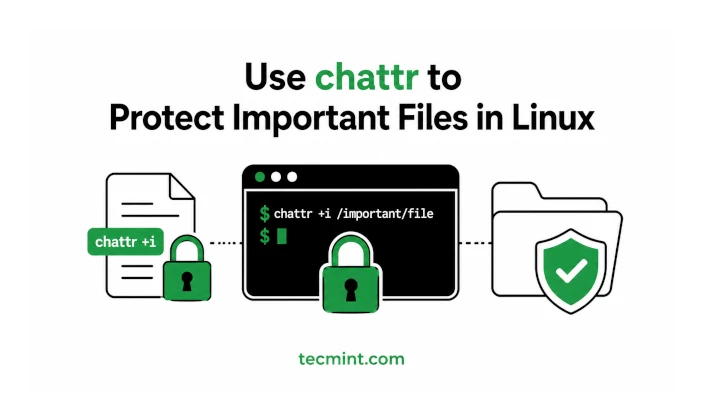
Most sysadmins reach for chmod when they want to lock down a file. The problem is that chmod 000 only changes the file’s permission bits; root can still override them. That’s where chattr comes in.
The chattr command lets you set and unset filesystem-level attributes on files and directories. These attributes are enforced at a lower level than traditional Unix permissions, giving you an additional layer of protection.
For example, chattr +i makes a file immutable: it cannot be modified, renamed, deleted, or replaced through normal filesystem operations, even by root. The attribute must be explicitly cleared with chattr -i before the file can be changed.
You can also use chattr +a to make a file append-only, which is particularly useful for protecting logs.
That makes chattr useful when you need stronger protection than chmod alone can provide, whether you’re safeguarding critical configuration files, protecting logs, or preventing accidental changes to important directories.
Syntax of chattr
The basic syntax of the chattr command is:
chattr [options] [operator] [attributes] [file_or_directory]
Operators
The operator determines what happens to the specified attributes:
+– adds the specified attribute to the file’s existing attributes without changing the others.-– removes the specified attribute while leaving the other attributes unchanged.=– sets the file’s attributes to exactly those specified, clearing any other attributes that were previously set.
Options
chattr also provides several options that control how attributes are applied:
-R– recursively apply the attribute change to a directory and all files and subdirectories inside it.-f– suppress most error messages, which can be useful in scripts when some files may not support a particular attribute.-vversion — set the file’s version/generation number to the specified value.
chmod alone? Share this guide with them. chattr adds another layer of protection for critical Linux files.Attributes and Flags
The following table covers the most commonly encountered chattr attributes. Attribute support varies by filesystem and kernel version, so an attribute that appears in lsattr is not necessarily supported or user-settable on every filesystem.
| Flag | Name | Behavior |
|---|---|---|
i |
Immutable | Prevents the file from being modified, deleted, renamed, or linked. The immutable attribute can only be set or cleared by a process with the required privilege, such as root with CAP_LINUX_IMMUTABLE, on filesystems that support it. |
a |
Append only | Allows data to be added only at the end of the file. Existing contents cannot be overwritten or truncated while the attribute is active. Setting or clearing it requires the appropriate privilege. |
A |
No atime update | Prevents the file’s access time (atime) from being updated when the file is accessed. This can reduce metadata writes on frequently read files. |
S |
Synchronous updates | Causes file changes to be written synchronously rather than relying on normal asynchronous buffering. This can improve data durability at the cost of performance. |
d |
No dump | Prevents the file from being included when the legacy dump backup utility is used. |
j |
Data journaling | Enables data journaling for the file on supported filesystems. On ext3/ext4, it requires the filesystem to support journaling and has no effect when the filesystem is mounted with data=writeback. |
t |
No tail-merging | Prevents tail-merging of partial blocks for filesystems that support this feature. This is primarily relevant to older ext2/ext3/ext4 behavior. |
u |
Undelete | Historically intended to preserve a file’s contents when deleted so they could potentially be recovered. Its practical behavior is filesystem-dependent and it is not a general-purpose undelete mechanism on modern Linux filesystems. |
e |
Extents | Indicates that the file uses extents for block mapping. On ext4, this is normally set automatically and cannot be manually added or removed with chattr. Seeing e in lsattr output is therefore normal. |
C |
No copy-on-write | Disables copy-on-write for the file on filesystems that support the attribute, most notably Btrfs. It is generally intended to be set before data is written to the file. |
Checking File Attributes
Use lsattr to see which attributes are currently set:
lsattr filename
For example:
$ lsattr important.conf
----i--------- important.conf
The i indicates that the file has the immutable attribute enabled. You can then remove the attribute with:
sudo chattr -i important.conf
And enable it again with:
sudo chattr +i important.conf
chattr attributes are filesystem-specific. Always check the filesystem documentation and your system’s chattr(1) and lsattr(1) man pages before relying on a particular attribute in production.s (secure deletion) flag is documented in the chattr man page, but current ext2, ext3, and ext4 kernels do not honor it. It does not securely erase or overwrite file data when a file is deleted. Do not rely on chattr +s for secure data erasure.Checking Attributes with lsattr
Before changing any attributes, it’s a good practice to check which ones are already set using lsattr, the companion command to chattr.
Check a Single File
lsattr /etc/passwd
Check Files in the Current Directory
lsattr
Check Attributes Recursively
lsattr -R /etc/ssh/
A typical lsattr output might look like:
-------------e------- /etc/passwd
Each character represents a filesystem attribute. A dash (-) means that the corresponding attribute is not set.
On ext4, the e flag commonly appears automatically because the filesystem uses extents for block mapping. You normally don’t set or remove this flag manually.
Other flags may be set by an administrator, application, or filesystem depending on the environment. Therefore, don’t assume that every non-dash attribute was deliberately set by a user.
Checking the current attributes first helps you avoid accidentally overwriting existing settings when using commands such as chattr =....
chattr guide with a fellow sysadmin or Linux admin.1. Prevent File Deletion with the Immutable Bit
The i (immutable) attribute is one of the most useful chattr flags for protecting important files and directories. When enabled, the kernel prevents normal modification, deletion, renaming, and other changes to the protected object.
First, create a test directory and file, then check their current permissions and attributes:
[root@tecmint tecmint]# ls -l
total 0
drwxr-xr-x. 2 root root 6 Aug 31 18:02 demo
-rwxrwxrwx. 1 root root 0 Aug 31 17:42 important_file.conf

[root@tecmint tecmint]# lsattr
----------------e--- ./demo
----------------e--- ./important_file.conf
The e flag is commonly displayed on ext4 because the filesystem uses extents. The absence of i means neither object is currently immutable.
Set the Immutable Attribute
Set the immutable bit on both the directory and file:
[root@tecmint tecmint]# chattr +i demo/
[root@tecmint tecmint]# chattr +i important_file.conf
Verify the attributes:
[root@tecmint tecmint]# lsattr
----i-----------e--- ./demo
----i-----------e--- ./important_file.conf
The i in the output confirms that the immutable attribute is enabled.
Try to Modify or Delete Them
Now try deleting the directory:
[root@tecmint tecmint]# rm -rf demo/
rm: cannot remove 'demo/': Operation not permitted
Try renaming it:
[root@tecmint tecmint]# mv demo/ demo_alter
mv: cannot move 'demo/' to 'demo_alter': Operation not permitted
Even changing the permissions of the immutable file is blocked:
[root@tecmint tecmint]# chmod 755 important_file.conf
chmod: changing permissions of 'important_file.conf': Operation not permitted
The important point is that being root does not bypass the immutable attribute during normal filesystem operations. The attribute must first be cleared by a sufficiently privileged process.
Remove the Immutable Attribute
To unlock the directory and file, remove the i attribute:
[root@tecmint tecmint]# chattr -i demo/ important_file.conf
They can now be modified or deleted normally:
[root@tecmint tecmint]# rm -rf demo/ important_file.conf
chattr +i to critical system files. An immutable configuration file can prevent legitimate system updates or administrative changes until the attribute is explicitly removed.2. Remove Attributes from Files
Once a file or directory has been marked immutable with chattr +i, you must remove the attribute before making changes to it. Use the -i operator to clear the immutable attribute:
[root@tecmint tecmint]# chattr -i demo/ important_file.conf
Verify the attributes with lsattr:
[root@tecmint tecmint]# lsattr
----------------e--- ./demo
----------------e--- ./important_file.conf
The i flag is no longer present, which means the immutable attribute has been removed. Both the directory and file can now be modified, renamed, or deleted normally, subject to their regular filesystem permissions.
chattr can do.3. Combine Multiple Flags in One Command
You can set or clear multiple attributes in a single chattr command by combining the attribute letters.
For example, to make a file immutable and prevent its access time (atime) from being updated:
[root@tecmint tecmint]# chattr +iA important_file.conf
Verify the attributes with lsattr:
[root@tecmint tecmint]# lsattr important_file.conf
----iA-----------e--- important_file.conf
The i flag indicates that the file is immutable, while A prevents updates to its access time.
Clear Multiple Attributes
You can remove both attributes in a single command:
[root@tecmint tecmint]# chattr -iA important_file.conf
Verify again:
[root@tecmint tecmint]# lsattr important_file.conf
----------------e--- important_file.conf
Set an Exact Attribute Combination
The = operator replaces the file’s current user-set attributes with the attributes you specify.
For example:
[root@tecmint tecmint]# chattr =A important_file.conf
This sets the A attribute and clears other attributes that can be changed through chattr.
[root@tecmint tecmint]# lsattr important_file.conf
-------A--------e--- important_file.conf
The e flag remains because it is a filesystem-managed ext4 attribute and is not something you normally add or remove manually with chattr.
= carefully. Unlike +, which adds an attribute while preserving existing ones, = can clear attributes you may have intentionally enabled.4. Protect System Authentication Files
The immutable attribute can be used to protect critical authentication and privilege-control files from accidental modification or unauthorized changes.
For example, you can make /etc/passwd, /etc/shadow, and /etc/sudoers immutable:
[root@tecmint tecmint]# chattr +i /etc/passwd
[root@tecmint tecmint]# chattr +i /etc/shadow
[root@tecmint tecmint]# chattr +i /etc/sudoers
Once these files are immutable, programs that need to modify them will fail. For example, attempting to create a new user can produce:
[root@tecmint tecmint]# useradd tecmint
useradd: cannot open /etc/passwd
The same protection can interfere with commands and tools that need to update these files, including passwd, adduser, usermod, and visudo.
Before performing legitimate user or privilege-management tasks, remove the immutable attribute:
[root@tecmint tecmint]# chattr -i /etc/passwd /etc/shadow /etc/sudoers
After making the required changes, you can reapply the attribute if it is appropriate for your environment.
sudo configurations may include additional policy files, such as those under /etc/sudoers.d/.For production systems, use this technique deliberately as part of a broader hardening strategy rather than as a permanent default.
5. Lock Down SSH and Cron Configuration
The immutable attribute can also protect SSH server configuration and scheduled-task files from unexpected modification. These locations are important because changes to SSH configuration or scheduled tasks can potentially be used to maintain unauthorized access.
Lock the SSH Configuration
Make the SSH server configuration immutable:
[root@tecmint tecmint]# chattr +i /etc/ssh/sshd_config
Protect Cron Configuration
You can recursively apply the immutable attribute to cron directories:
[root@tecmint tecmint]# chattr -R +i /etc/cron.d/
[root@tecmint tecmint]# chattr -R +i /etc/cron.daily/
[root@tecmint tecmint]# chattr -R +i /etc/cron.weekly/
The -R option applies the attribute to the directory and its contents.
An attacker or compromised process running with root privileges still cannot normally modify or remove an immutable file unless it has the capability required to override the immutable attribute, such as CAP_LINUX_IMMUTABLE.
Verify the protected files with lsattr:
[root@tecmint tecmint]# lsattr /etc/ssh/sshd_config
----i-----------e--- /etc/ssh/sshd_config

[root@tecmint tecmint]# lsattr /etc/cron.d/
----i-----------e--- /etc/cron.d/0hourly
----i-----------e--- /etc/cron.d/sysstat
The i flag confirms that the immutable attribute is enabled.
Remove the Protection When Needed
Before making legitimate SSH configuration changes or deploying scheduled jobs, remove the immutable attribute:
[root@tecmint tecmint]# chattr -i /etc/ssh/sshd_config
[root@tecmint tecmint]# chattr -R -i /etc/cron.d/
[root@tecmint tecmint]# chattr -R -i /etc/cron.daily/
[root@tecmint tecmint]# chattr -R -i /etc/cron.weekly/
6. Allow Append-Only Writes on Log Files
The a (append-only) attribute allows new data to be added to a file while preventing existing content from being overwritten or the file from being truncated. This can provide an additional layer of protection for important log files.
For example, make an authentication log append-only:
[root@tecmint tecmint]# chattr +a /var/log/auth.log
[root@tecmint tecmint]# lsattr /var/log/auth.log
-----a----------e--- /var/log/auth.log
The a flag confirms that the append-only attribute is enabled.
Overwriting Is Blocked
Trying to overwrite the file fails:
[root@tecmint tecmint]# echo "erasing log" > /var/log/auth.log
-bash: /var/log/auth.log: Operation not permitted
Appending data, however, is allowed:
[root@tecmint tecmint]# echo "new audit entry" >> /var/log/auth.log
This makes +a useful when you want to prevent normal processes from modifying or truncating existing log contents while still allowing new entries to be written.
Log Rotation Considerations
Be careful when applying +a to logs managed by logrotate. Some rotation strategies need to truncate, rename, or otherwise modify the protected file and may fail while the append-only attribute is active.
For example, copytruncate requires the original log file to be truncated after it is copied, which conflicts with the append-only attribute.
If you use append-only protection, test your log rotation configuration carefully. Depending on the application and rotation strategy, using a method that creates a new log file instead of truncating the existing one may be more appropriate.
Applying Append-Only Recursively
Although chattr supports recursive operations, do not blindly apply +a to the entire /var/log directory:
chattr -R +a /var/log/
This can interfere with applications, log rotation, and system maintenance. Instead, apply the attribute selectively to specific logs where append-only protection is actually required.
7. Reduce Access-Time Updates with the A Flag
Linux can record the last time a file was accessed using its atime (access time) timestamp. Updating atime can result in additional filesystem metadata activity, although modern Linux systems commonly use relatime by default to significantly reduce these updates.
The A attribute tells the filesystem not to update the file’s atime when it is accessed. This can be useful for read-heavy files or directories where access-time information is not important.
For example:
Web Server Cache
[root@tecmint tecmint]# chattr -R +A /var/www/cache/
Application Build Cache
[root@tecmint tecmint]# chattr -R +A /home/deploy/.cache/
You can verify the attribute with lsattr:
[root@tecmint tecmint]# lsattr /var/www/cache/
-------A--------e--- /var/www/cache/index.html
The A flag indicates that access-time updates are disabled for the file.
Check Mount Options First
Before using chattr +A, check how the filesystem is mounted:
[root@tecmint tecmint]# findmnt -o TARGET,OPTIONS
Look for options such as:
noatime– disables access-time updates completely.relatime– updatesatimeonly under certain conditions and is the common default on modern Linux systems.
If the filesystem is already mounted with noatime, setting +A provides little or no additional benefit. Even with relatime, selectively using +A can be unnecessary unless you specifically want to suppress atime updates for particular files.
+A as a general-purpose SSD optimization. Modern filesystems and mount options already minimize unnecessary atime writes. Check the existing mount configuration and measure I/O behavior before applying the attribute broadly.8. Protect an Entire Directory Recursively
The -R option applies a chattr operation recursively to a directory and its contents. This is useful when you need to protect an entire configuration tree rather than individual files.
For example, make an application’s configuration directory and everything inside it immutable:
[root@tecmint tecmint]# chattr -R +i /opt/myapp/config/
This applies the immutable attribute to the directory, its files, and its subdirectories.
Try to Delete the Directory
Any attempt to remove or modify the protected tree will fail:
[root@tecmint tecmint]# rm -rf /opt/myapp/config/
rm: cannot remove '/opt/myapp/config/': Operation not permitted
Individual files inside the directory are also protected from normal modification, deletion, or renaming.
Unlock the Directory Tree
Before performing a deployment or configuration update, remove the immutable attribute recursively:
[root@tecmint tecmint]# chattr -R -i /opt/myapp/config/
The files can then be modified normally, subject to their regular permissions.
Limitations and What chattr Can’t Do
chattr +i provides an additional filesystem-level protection layer, but it is not a replacement for proper permissions, privilege management, or system security controls. It also has important limitations:
- Privileged processes can remove the protection. On Linux, changing the immutable attribute requires the appropriate capability, typically
CAP_LINUX_IMMUTABLE. A process that can obtain that capability can runchattr -iand then modify or delete the file. - A kernel-level compromise changes the security boundary. Because filesystem attributes are enforced by the kernel, an attacker who has compromised the kernel or gained equivalent control can potentially bypass or manipulate those protections.
- Offline access can bypass the running system’s controls. If an attacker can boot another operating system or otherwise access the underlying storage outside the normal running system, the protection provided by the host’s kernel cannot be relied upon.
- Attribute support depends on the filesystem. Not every filesystem supports every chattr attribute. For example, support differs between ext4, Btrfs, and XFS, while some filesystems may return Operation not supported. Always verify support on the filesystem you are using rather than assuming an attribute will work everywhere.
You can identify the filesystem backing a path with:
findmnt /path/to/file
Monitor chattr Activity with auditd
For security-sensitive systems, you can use auditd to record executions of the chattr command:
# /etc/audit/rules.d/chattr.rules
-a always,exit -F arch=b64 -S execve -F path=/usr/bin/chattr -k chattr_call
After loading the rule, executions of /usr/bin/chattr can be searched using the audit key:
ausearch -k chattr_call
This provides visibility into processes that execute chattr, including attempts to remove an immutable attribute.
Ultimately, chattr works best as one layer in a defense-in-depth strategy. Combine filesystem attributes with least-privilege access, secure authentication, system hardening, patch management, centralized logging, and appropriate monitoring.
chattr +i just saved a file you nearly deleted as root, share this guide with the next sysadmin on your team who’s still relying on chmod alone.Frequently Asked Questions
Still have questions about chattr? These common questions cover its security capabilities, filesystem support, scripting considerations, and practical ways to identify immutable files.
Can chattr Protect Against Ransomware?
Partially. The +i attribute can prevent a ransomware process from modifying, replacing, or deleting protected files if that process does not have the privileges required to clear the immutable attribute.
For example, protecting critical configuration or backup metadata with chattr +i can add a useful layer against some compromised processes.
However, chattr is not ransomware protection by itself. A sufficiently privileged attacker may be able to obtain the capability needed to remove the attribute before modifying the files.
For stronger protection, combine filesystem attributes with least privilege, SELinux or AppArmor, application isolation, offline or immutable backups, centralized logging, and endpoint monitoring.
Does chattr Work on Btrfs?
Yes, but attribute support varies by filesystem.
Btrfs supports commonly used attributes such as i (immutable), a (append-only), and C (no copy-on-write). The C attribute is particularly relevant to Btrfs and should generally be set before data is written to the file.
Not every chattr flag has the same meaning or behavior across filesystems. Always check the filesystem documentation and verify the result with:
lsattr /path/to/file
Can I Use chattr in Scripts Safely?
Yes, but handle unsupported attributes and command failures explicitly. The -f option suppresses most error messages:
chattr -f +i /path/to/file
This can keep scripts from producing unwanted error output when a file or filesystem does not support the requested operation.
However, -f does not make a failed operation successful. If your script needs to know whether the attribute was actually applied, check the command’s exit status and, where appropriate, verify the result with lsattr.
For example:
if chattr -f +i /path/to/file; then
    echo "Immutable attribute applied"
else
    echo "Failed to set immutable attribute"
fi
How Do I Find All Immutable Files on a System?
You can recursively run lsattr and search for entries containing the i attribute:
lsattr -R / 2>/dev/null | grep -- '----i'
The 2>/dev/null portion suppresses error messages from paths that cannot be read or do not support lsattr, including some virtual filesystems.
However, scanning the entire root filesystem can be slow and noisy on a large system. For a more targeted search, scan specific directories:
lsattr -R /etc /opt /var 2>/dev/null | grep -- '----i'
lsattr output is filesystem and implementation-dependent, so when writing automated security checks, consider parsing the attribute position carefully rather than assuming that every output line follows exactly the same format.Conclusion
The chattr command gives Linux administrators an additional layer of filesystem-level control beyond traditional permissions such as chmod. Attributes like i (immutable), a (append-only), and A (no atime updates) can help protect critical files, preserve important logs, and reduce unnecessary filesystem metadata updates.
However, chattr is not a replacement for proper permissions, access controls, backups, or security monitoring. Its behavior also varies between filesystems, so always verify attribute support before using it in production.
Once you understand how to set, inspect, and remove these attributes with chattr and lsattr, you can use them selectively to strengthen Linux systems without disrupting normal administration and maintenance.