tail -f to watch logs. That leaves a lot of useful behavior untouched and a lot of time wasted scrolling through files that could be sliced in seconds.Every Linux system whether it’s a cloud VM, a bare-metal server, or a container running a single servic; generates files constantly. Config files, log files, CSV exports, deployment outputs, and cron job records are everywhere.
Being able to read and inspect those files quickly, without opening an editor or writing a Python script, is one of the most underrated command-line skills.
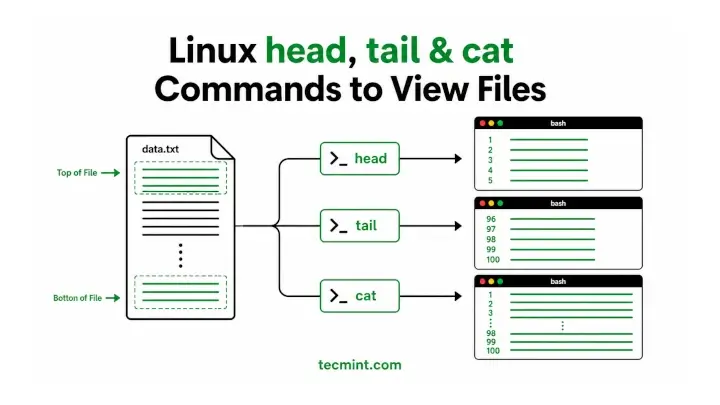
The three commands in this guide; head, tail, and cat comes with every Linux distribution nd have been around since the early days of Unix. They look simple at first, but each has options and behaviors that many users never explore until they suddenly need them
For example head can skip the last N lines of a file, not just display the first few. tail can follow a file by name through log rotation, rather than simply following the original file descriptor. And cat can expose hidden characters that break your shell scripts in ways that look completely invisible.
All examples in this guide are tested on Ubuntu 26.04, where behavior differs on RHEL 9 / Rocky Linux 9; both variants are shown.
Prerequisites: Basic familiarity with the Linux terminal and navigating the filesystem. No root access is required for most examples; sudo is noted where needed.
1. head Command
head command prints the first 10 lines of a file by default. It’s a quick way to check a file’s format, headers, or first few entries without opening an editor.
The basic syntax of the head command is:
head [options] [file(s)]
View the First 10 Lines of a File
head /etc/passwd
Output:
root:x:0:0:root:/root:/bin/bash
daemon:x:1:1:daemon:/usr/sbin:/usr/sbin/nologin
bin:x:2:2:bin:/bin:/usr/sbin/nologin
sys:x:3:3:sys:/dev:/usr/sbin/nologin
sync:x:4:65534:sync:/bin:/bin/sync
games:x:5:60:games:/usr/games:/usr/sbin/nologin
man:x:6:12:man:/var/cache/man:/usr/sbin/nologin
lp:x:7:7:lp:/var/spool/lpd:/usr/sbin/nologin
mail:x:8:8:mail:/var/mail:/usr/sbin/nologin
news:x:9:9:news:/var/spool/news:/usr/sbin/nologin
View a Specific Number of Lines
Use -n to control how many lines head displays. Both forms below are equivalent:
head -n 5 /var/log/syslog
head -5 /var/log/syslog
Output:
026-08-18T05:06:36.715382+05:30 pro systemd[1]: rsyslog.service: Sent signal SIGHUP to main process 910 (rsyslogd) on client request.
2026-08-18T05:06:36.715534+05:30 pro rsyslogd: [origin software="rsyslogd" swVersion="8.2312.0" x-pid="910" x-info="https://www.rsyslog.com"] rsyslogd was HUPed
2026-08-18T05:06:36.719902+05:30 pro systemd[1]: logrotate.service: Deactivated successfully.
2026-08-18T05:06:36.720006+05:30 pro systemd[1]: Finished logrotate.service - Rotate log files.
2026-08-18T05:06:36.744453+05:30 pro systemd[1]: Finished libvirt-guests.service - libvirt guests suspend/resume service.
View Multiple Files at Once
You can pass multiple files to head. It adds a header before each file so you can tell which output belongs to which file:
head -5 /etc/passwd /etc/group
Output:
==> /etc/passwd <==
root:x:0:0:root:/root:/bin/bash
daemon:x:1:1:daemon:/usr/sbin:/usr/sbin/nologin
bin:x:2:2:bin:/bin:/usr/sbin/nologin
sys:x:3:3:sys:/dev:/usr/sbin/nologin
sync:x:4:65534:sync:/bin:/bin/sync

==> /etc/group <==
root:x:0:
daemon:x:1:
bin:x:2:
sys:x:3:
adm:x:4:syslog,ravi
View a Specific Number of Bytes
Use -c to limit the output by bytes instead of lines. This can be useful when you need to inspect the beginning of a file or check its initial bytes:
head -c 50 /var/log/syslog
Output:
2026-08-18T05:06:36.715382+05:30 pro systemd[1]
Skip the Last N Lines
Here’s a lesser-known GNU head feature: -n -N prints everything except the last N lines. This is useful when you need to remove footer rows from a CSV file or ignore trailing lines in a log:
head -n -5 access.log
tail Command
tail command prints the last 10 lines of a file by default. It’s especially useful for checking recent output from large files and monitoring logs as they are updated.
The basic syntax of the tail command is:
tail [options] [file(s)]
View the Last 10 Lines of a File
tail /var/log/syslog
Output:
2026-08-24T15:54:56.280058+05:30 pro dbus-daemon[1726]: [session uid=1000 pid=1726] Successfully activated service 'org.xfce.Xfconf'
2026-08-24T15:55:01.529373+05:30 pro CRON[17986]: (ravi) CMD (echo "Cron is working!" >> /home/ravi/cron-test.log)
2026-08-24T15:56:14.729059+05:30 pro systemd[1]: Starting man-db.service - Daily man-db regeneration...
2026-08-24T15:56:15.032277+05:30 pro systemd[1]: man-db.service: Deactivated successfully.
2026-08-24T15:56:15.032440+05:30 pro systemd[1]: Finished man-db.service - Daily man-db regeneration.
2026-08-24T15:56:17.402664+05:30 pro kernel: perf: interrupt took too long (3136 > 3131), lowering kernel.perf_event_max_sample_rate to 63000
2026-08-24T15:57:22.022697+05:30 pro wpa_supplicant[929]: wlp4s0: CTRL-EVENT-SIGNAL-CHANGE above=1 signal=-68 noise=-100 txrate=0
2026-08-24T15:57:36.358952+05:30 pro wpa_supplicant[929]: wlp4s0: CTRL-EVENT-SIGNAL-CHANGE above=0 signal=-76 noise=-100 txrate=0
2026-08-24T15:57:47.725661+05:30 pro wpa_supplicant[929]: wlp4s0: CTRL-EVENT-SIGNAL-CHANGE above=0 signal=-80 noise=-100 txrate=0
2026-08-24T16:00:01.541868+05:30 pro CRON[18307]: (ravi) CMD (echo "Cron is working!" >> /home/ravi/cron-test.log)
View a Specific Number of Lines
Use -n to control how many lines are displayed:
tail -n 20 /var/log/auth.log
tail -20 /var/log/auth.log
2026-08-24T15:30:01.468427+05:30 pro CRON[16814]: pam_unix(cron:session): session opened for user root(uid=0) by root(uid=0)
2026-08-24T15:30:01.470116+05:30 pro CRON[16815]: pam_unix(cron:session): session opened for user ravi(uid=1000) by ravi(uid=0)
2026-08-24T15:30:01.470158+05:30 pro CRON[16814]: pam_unix(cron:session): session closed for user root
2026-08-24T15:30:01.471643+05:30 pro CRON[16815]: pam_unix(cron:session): session closed for user ravi
2026-08-24T15:35:01.475150+05:30 pro CRON[16962]: pam_unix(cron:session): session opened for user ravi(uid=1000) by ravi(uid=0)
2026-08-24T15:35:01.479823+05:30 pro CRON[16962]: pam_unix(cron:session): session closed for user ravi
2026-08-24T15:39:01.482578+05:30 pro CRON[17365]: pam_unix(cron:session): session opened for user root(uid=0) by root(uid=0)
Follow a Log File in Real Time
The -f option keeps the file open and displays new lines as they are written. This is one of the most common ways to monitor a log while troubleshooting a service:
tail -f /var/log/nginx/error.log
Press Ctrl+C to stop following the file. You can combine -f with -n to display the last N lines first and then continue following new entries:
tail -n 50 -f /var/log/nginx/access.log
Follow Multiple Log Files Simultaneously
You can follow more than one file at the same time:
tail -f /var/log/nginx/access.log /var/log/nginx/error.log
tail prints a header before each file’s output, making it clear which log each line came from.
tail, head, cat, pipes, redirections, and more with practical exercises and real-world scenarios for every command.Follow by File Name, not File Descriptor
When log rotation replaces a file with a new one, a normal tail -f may continue following the old file. Use --follow=name to have tail follow the file by name and reopen it when necessary:
tail --follow=name /var/log/syslog
Output:
2026-08-24T16:07:40.216089+05:30 pro wpa_supplicant[929]: wlp4s0: CTRL-EVENT-SIGNAL-CHANGE above=0 signal=-76 noise=-100 txrate=0
2026-08-24T16:08:29.469397+05:30 pro wpa_supplicant[929]: wlp4s0: CTRL-EVENT-SIGNAL-CHANGE above=1 signal=-66 noise=-100 txrate=0
2026-08-24T16:08:35.305708+05:30 pro wpa_supplicant[929]: wlp4s0: CTRL-EVENT-SIGNAL-CHANGE above=0 signal=-77 noise=-100 txrate=0
2026-08-24T16:09:01.571086+05:30 pro CRON[18577]: (root) CMD (  [ -x /usr/lib/php/sessionclean ] && if [ ! -d /run/systemd/system ]; then /usr/lib/php/sessionclean; fi)
On RHEL/Rocky Linux, a similar approach can be used with /var/log/messages when logs are written to flat files:
tail --follow=name /var/log/messages
Start Output from a Specific Line Number
Using +N tells tail to start displaying output from line N instead of counting backward from the end. This is useful when you want to skip a header or the first few lines:
tail -n +2 /etc/passwd
The command above skips the first line and starts with line 2.
View the Last N Bytes
Use -c when you want to inspect the end of a file by bytes rather than lines:
tail -c 100 /var/log/syslog
Output:
0:01.541868+05:30 pro CRON[18307]: (ravi) CMD (echo "Cron is working!" >> /home/ravi/cron-test.log)
Watch journald Logs on systemd Systems
On modern Ubuntu and RHEL systems, many services write logs to the systemd journal instead of traditional log files. In those cases, journalctl command provides similar follow functionality:
journalctl -u nginx -f
journalctl -u sshd -n 50 -f
Output:
Aug 24 05:25:32 pro.tecmint systemd[1]: Starting nginx.service - A high performance web server and a reverse proxy server...
Aug 24 05:25:33 pro.tecmint systemd[1]: Started nginx.service - A high performance web server and a reverse proxy server.
The first command follows new entries for the nginx service. The second displays the last 50 entries and then continues following new ones.
3. cat Command
cat command (short for concatenate) reads files and writes their contents to standard output. It’s a quick way to display a file, combine multiple files, or pass file contents to another command through a pipeline.
The basic syntax of the cat command is:
cat [options] [file(s)]
Print a File to the Terminal
cat /etc/os-release
Output:
NAME="Linux Mint"
VERSION="22.3 (Zena)"
ID=linuxmint
ID_LIKE="ubuntu debian"
PRETTY_NAME="Linux Mint 22.3"
VERSION_ID="22.3"
HOME_URL="https://www.linuxmint.com/"
SUPPORT_URL="https://forums.linuxmint.com/"
BUG_REPORT_URL="http://linuxmint-troubleshooting-guide.readthedocs.io/en/latest/"
PRIVACY_POLICY_URL="https://www.linuxmint.com/"
VERSION_CODENAME=zena
UBUNTU_CODENAME=noble
Print Multiple files in Sequence
You can provide multiple files, and cat prints them one after another:
cat /etc/hostname /etc/hosts
Concatenate Files into a New File
Use output redirection to combine several files into one:
echo 'Hi Tecmint-Team' > 1.txt
echo 'Keep connected' > 2.txt
echo 'Share your thought' > 3.txt
echo 'connect us [email protected]' > 4.txt
cat 1.txt 2.txt 3.txt 4.txt > combined.txt
You can then verify the combined file:
cat combined.txt
Output:
Hi Tecmint-Team
Keep connected
Share your thought
connect us [email protected]
This is also useful in real-world situations, such as assembling configuration snippets or combining log segments:
cat header.txt body.txt footer.txt > report.txt
Copy a File Using cat
You can duplicate a file by redirecting cat output to another file. This is not a replacement for cp, but it can be useful when working with pipelines or when you only need to copy the file contents:
cat /etc/nginx/nginx.conf > /tmp/nginx.conf.bak
cat /tmp/nginx.conf.bak
The second command lets you verify that the copied file contains the expected content.
Create a File Interactively
Running cat with an output redirection and no input file lets you type content directly into a file:
cat > notes.txt
This is line one
This is line two
Press Ctrl+D when you’re finished. This sends an end-of-file signal and returns you to the shell. For scripted or repeatable file creation, a heredoc is usually more convenient.
Show Line Numbers
The -n option numbers every line, including blank lines. Use -b to number only non-blank lines:
cat -n /etc/fstab
cat -b /etc/nginx/nginx.conf
Show Non-Printing Characters
The -A option makes hidden characters visible. Tabs appear as ^I, while line endings are shown with $. This is especially useful when debugging shell scripts or configuration files that contain unexpected tabs, trailing characters, or Windows-style rn line endings:
cat -A suspicious-script.sh
Show End-of-Line Markers
The -E option displays a $ at the end of each line. This can help you spot trailing spaces or other unexpected whitespace:
cat -E /etc/hosts
Create a File with a heredoc
You can use cat with a heredoc to create a file and write several lines at once:
cat > /tmp/test-config.txt << 'EOF'
server_name=web01
env=production
port=8080
EOF
You can verify the contents with:
cat /tmp/test-config.txt
Output:
server_name=web01
env=production
port=8080
You can also use a custom marker instead of EOF. Any word works as long as the opening and closing markers match:
cat > /tmp/deploy-note.txt << END
Deployed by: ravi
Environment: staging
Date: 2026-06-12
END
Then check the file:
cat /tmp/deploy-note.txt
Output:
Deployed by: ravi
Environment: staging
Date: 2026-06-12
Append to an Existing File
Use >> instead of > when you want to append content without overwriting the existing file:
cat >> /var/log/deploy.log << 'EOF'
Deployment completed at 2026-06-12 14:32 UTC
EOF
Use cat in a Pipeline
cat can pass file contents to commands such as grep, awk, or sed for filtering and processing:
cat /var/log/auth.log | grep "Failed password" | awk '{print $11}' | sort | uniq -c | sort -rn
For a single file, however, grep, awk, or sed can usually read the file directly, so cat is not always necessary:
grep "Failed password" /var/log/auth.log
Read a File in Reverse with tac
tac is essentially the reverse of cat: it prints a file one line at a time, starting with the last line. It’s included with GNU coreutils on major Linux distributions.
For example, create a file containing the months of the year:
cat > months.txt << 'EOF'
January
February
March
April
May
June
July
August
September
October
November
December
EOF
Now reverse the lines:
tac months.txt

December
November
October
September
August
July
June
May
April
March
February
January
In practice, tac is useful for quickly reading a log file in reverse so the newest entries appear first:
tac /var/log/syslog | head -20
Unlike tail -f, this reads the file once and exits, so it’s useful when you only need a quick reverse view.
Combining head and tail
You can combine head and tail to extract a specific range of lines from a file. For example, to display lines 20–30:
head -30 /etc/nginx/nginx.conf | tail -11
It works in two steps:
head -30takes the first 30 lines of the file.tail -11takes the last 11 lines from those 30 lines.
So the result is lines 20 through 30 of /etc/nginx/nginx.conf.
The output you showed contains 11 lines:
types_hash_max_size 2048;
	# server_tokens off;

	# server_names_hash_bucket_size 64;
	# server_name_in_redirect off;

	include /etc/nginx/mime.types;
	default_type application/octet-stream;

	##
	# SSL Settings
The blank lines also count as lines, which is why you may see fewer than 11 lines of visible text. For scripting, sed is often cleaner because it can print a specific range of lines directly:
sed -n '20,30p' /etc/nginx/nginx.conf
It directly prints lines 20 through 30, so it is simpler and more efficient than head -30 /etc/nginx/nginx.conf | tail -11
Quick Reference
| Command | What It Does |
|---|---|
head -n 20 file |
First 20 lines |
head -n -5 file |
All lines except the last 5 |
head -c 100 file |
First 100 bytes |
tail -n 20 file |
Last 20 lines |
tail -n +2 file |
From line 2 to the end |
tail -f file |
Follow new output in real time |
tail --follow=name file |
Follow by filename and handle log rotation |
cat -n file |
Print with line numbers |
cat -A file |
Reveal tabs, line endings, and non-printing characters |
cat f1 f2 > f3 |
Concatenate files |
tac file |
Print a file in reverse line order |
Conclusion
head, tail, and cat are simple commands, but they become extremely useful once you know how to combine their options. Whether you’re checking a configuration file, inspecting the beginning or end of a log, following a service in real time, or combining files in a script, these commands let you work with text quickly from the terminal.
The real advantage comes from using them together with pipes, redirections, grep, sed, awk, and other command-line tools. Once these basics become part of your everyday workflow, inspecting files and troubleshooting Linux systems becomes much faster and more efficient.
That’s all for now. I’ll be back with another interesting article worth knowing. Until then, stay tuned and connected with TecMint, and don’t forget to share your valuable feedback in the comments section.