service-control –status –all
There are also specific VCF scenarios where Broadcom guidance explicitly tells customers to apply a vCenter patch through VAMI and then update SDDC Manager inventory/version alias data.
For standalone vCenter, this is a clean operational walkthrough. For VCF-managed vCenter, treat VAMI as a tool that may be valid in specific cases, not as an automatic replacement for the VCF lifecycle model. When direct patching is required or vendor-directed, document it clearly, validate the environment before execution, and reconcile the management plane afterward.
Do not blindly delete files to make a patch fit. If a partition is full, identify why. Logs, core dumps, database growth, archive data, stale update packages, and support bundles require different remediation paths.
Broadcom’s service dependency guidance also recommends using VAMI or service-control --status to determine which services are running and notes that some services with Manual or Disabled startup types may not be required services.
Objective
For VCF environments where a direct or out-of-band update occurred, confirm whether version synchronization is required. Broadcom’s VCF version sync KB states that manual version synchronization can be performed with POST /v1/resources/version-syncs, and that synchronization can be global or per-domain with optional product filters such as VCENTER, ESXI, NSX, and VXRAIL.
Use Stage Only when you want to validate download/repository access before the actual install window. This is especially helpful when repository access depends on firewall, proxy, entitlement, or Broadcom token configuration.
For URL-based patching, KB 316584 instructs administrators to log in to VAMI, go to Update, check updates using CD-ROM plus URL, select the target patch, and either stage/install or stage only.
| Method | Use when |
|---|---|
| URL-based repository | vCenter can reach the configured online repository. |
| CD-ROM / ISO | You need an offline or controlled local patch source. |
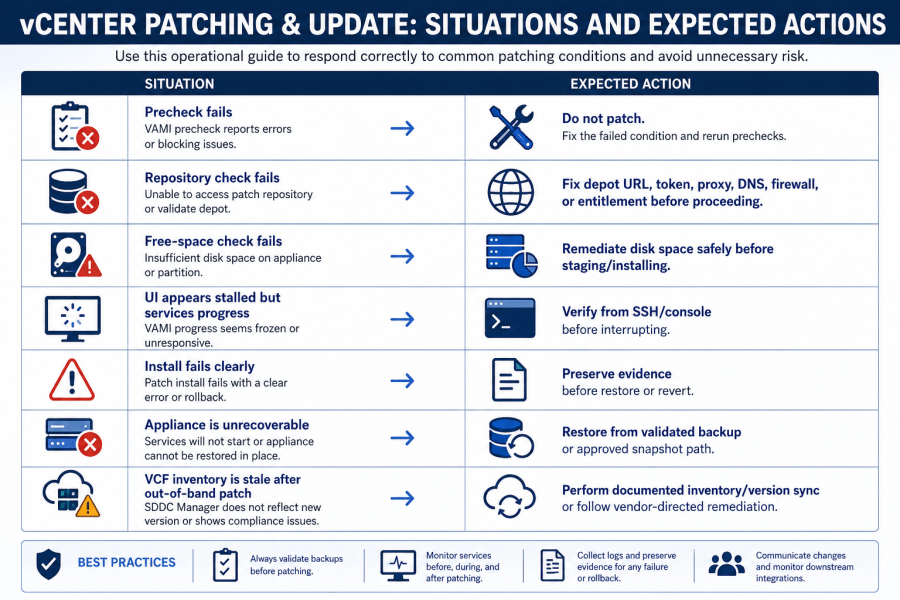
That does not mean ignore all failures. It means verify before you revert.
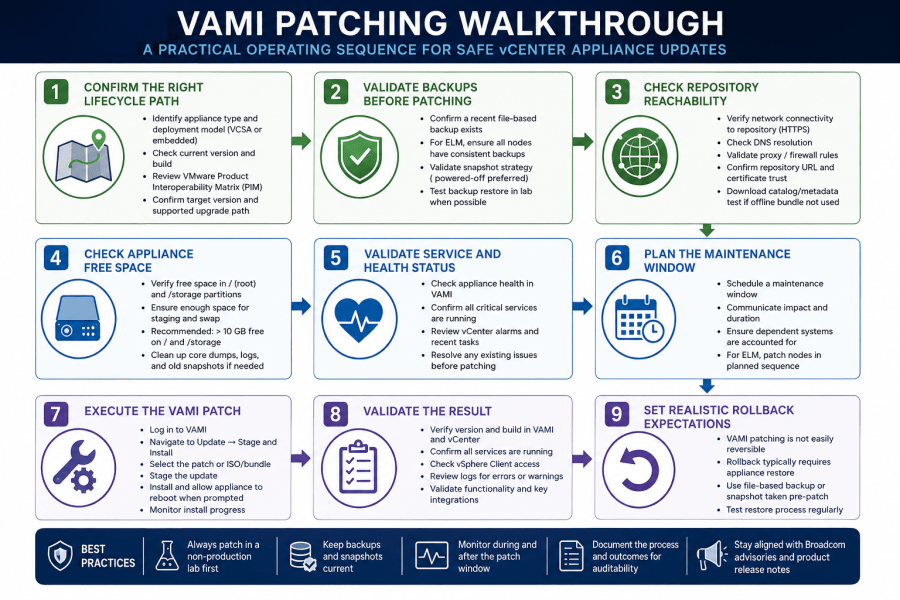
Before touching the Update tab, think of the workflow as a controlled gate sequence.
Do not rely only on the absence of an alarm. Check the appliance.
Before patching, validate the backup at an operational level:
In VAMI:
Rollback planning is where many patch runbooks become too optimistic.
Check Free Space Before You Stage Anything
The practical rule is simple: do not let a VAMI patch create lifecycle drift that the VCF stack cannot explain later.
For vSphere 7.x and 8.x, KB 316584 notes that vSphere SSO Administrator credentials can be used for appliance patching instead of the root account. Do not discover during the patch that the account you expected to use is expired, locked, or no longer authorized.
Also avoid overlapping protection activities. Broadcom’s vCenter data integrity guidance says not to take a snapshot while a backup is already in progress, and not to start a backup while a snapshot is in progress. It also recommends scheduling backups when vCenter is not under heavy load.
health.system.get
Broadcom’s disk expansion KB includes an example where an upgrade precheck can fail because the root partition has 27 GB free while the check requires 30 GB, and it notes that resizing the root partition is not supported on vCenter 7.0 and above. That is exactly the kind of issue you want to find before the maintenance window, not after the precheck blocks the install.
VAMI gives you two useful operational choices:
//storage/core/storage/db/storage/log/storage/seat/storage/archive/storage/updatemgr
If a required appliance partition is near capacity, stop.
Fix the space issue first.
Then rerun health and update checks.
Validate Appliance Health and Service State
# From an SSH session or console, check root password aging
chage -l root
Broadcom’s root password guidance states that, by default, the vCenter Appliance root password expires every 90 days.
Do not keep clicking through transient UI states. During patching, services may restart and management interfaces may become temporarily unavailable. Watch the task, use the console or SSH if needed, and avoid interrupting the appliance unless you have a clear failure condition.
A simple pre-patch health command set:
A particularly important edge case: Broadcom KB 415762 documents a vCenter 8.0 U1 VAMI scenario where the UI can incorrectly report that vCenter is down and should be restored from backup or snapshot, while services continue progressing in the background. Broadcom’s resolution for that case is to allow the update to proceed if no further errors or symptoms arise.
Broadcom’s disk expansion KB also documents how to identify partitions and map logical volumes to disks using commands such as df -h, lsblk, and related storage checks.
The difference between a normal maintenance task and a recovery event is usually not the patch button itself. It is the preparation around the button: lifecycle ownership, current repository configuration, validated backups, appliance free space, service health, credentials, and a rollback plan that is honest about what can and cannot be safely reverted.
It is a vCenter that comes back healthy, matches the expected build, is visible to the rest of the platform, has a fresh backup, and does not leave tomorrow’s lifecycle workflow with unexplained drift.
VAMI > Monitor > Disks
Before using VAMI directly, answer these questions:
This walkthrough treats VAMI patching as an operational change, not a casual appliance task. The goal is to patch vCenter through VAMI while reducing the chance that a normal update turns into a recovery event.
Stage First When the Window Requires Separation
Log collection commands:
- Stage Only
- Stage and Install
Disk space issues are a classic patch failure pattern.
KB 316584 specifically calls out three notes before patching: confirm the root password is not expired, confirm local SSO administrator credentials are available, and confirm vCenter upgrade settings are current.
Repository reachability is no longer just a generic internet test.
Use the vCenter Server Appliance Management Interface, commonly referred to as VAMI, to patch vCenter in a controlled way.
Use Stage and Install when the maintenance window includes both payload retrieval and installation.
Conclusion
A failed vCenter patch is not always a simple “revert snapshot” decision. The right response depends on when the failure occurred, whether the appliance is still progressing, whether services are recoverable, and whether VCF or external systems have observed a version/state change.
Validate After the Patch
The important point in the diagram is that patch execution is not the first meaningful step. The real work starts with lifecycle ownership, backup validation, repository reachability, free space, and service health.
Confirm the Right Lifecycle Path First
Use this rollback model:
From VAMI:
Rollback Expectations: Know What You Are Actually Rolling Back
Existing workloads should not be treated the same as management operations.
# Service state
service-control –status –all
# Disk state
df -h
# Root account aging
chage -l root
Before the maintenance window, confirm: