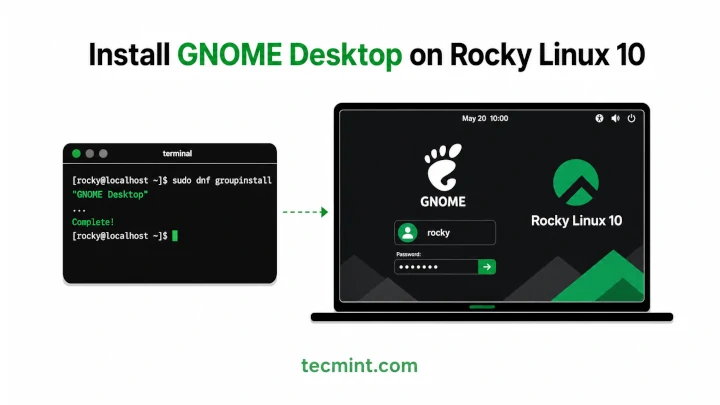
If you chose the Minimal Install option during the Rocky Linux 10 installation, your system includes only the essential packages needed to run without any desktop environment, which means no graphical login screen and no GUI applications.
This setup is ideal for servers because it’s lightweight and uses fewer system resources. However, if you’re using your system as a workstation, a virtual machine, or simply prefer working with a graphical interface, you’ll probably want to install GNOME.
This guide covers two installation methods.
- The first uses DNF to install GNOME from the online repositories, which is the easiest option if your system has internet access.
- The second shows how to install GNOME offline using the Rocky Linux 10 DVD ISO as a local package repository, which is useful for air-gapped systems, secure lab environments, or machines without internet access.
This tutorial was tested on a minimal installation of Rocky Linux 10, but the same installation instructions also work on AlmaLinux 10 and RHEL 10.
What You’ll Need
Before you begin, make sure you have the following:
To check how much free disk space you have, run:
df -h /
Example output:
Filesystem      Size  Used Avail Use% Mounted on
/dev/sda3        40G  3.2G   37G   8% /
Look at the Avail column. If you have at least 3 GB of free space, you’re ready to continue.
Method 1: Install GNOME Online (With Internet Access)
If your Rocky Linux 10 system has an internet connection, you can use the dnf command to download all the required packages directly from the official Rocky Linux repositories.
Step 1: Update Your System
Before installing new software, it’s a good idea to update your existing packages, which ensures you’re installing the latest versions and helps avoid dependency issues.
sudo dnf update -y
The sudo command runs the update with administrative privileges, while the -y option automatically answers yes to any prompts. Depending on the number of available updates and your internet speed, this process may take a few minutes.
Step 2: Install the GNOME Desktop
Rocky Linux groups related packages together, so instead of installing hundreds of individual packages, you can install the complete GNOME desktop with a single command.
sudo dnf group install "Server with GUI" -y
This installs everything needed for a full graphical desktop, including:
- GNOME Shell
- GDM (GNOME Display Manager)
- Wayland
- Desktop utilities and supporting libraries
Tip: If you prefer a smaller desktop installation without the extra server-related tools, install the GNOME group instead:
sudo dnf group install "GNOME" -y
Note: If you receive a No match for group error, list the available package groups first:
sudo dnf group list
Then use the group name shown on your system.
Step 3: Set Graphical Boot as Default
Installing GNOME doesn’t automatically change the system’s default boot mode, because a minimal Rocky Linux installation starts in multi-user.target, which is command-line mode.
First, check the current default target:
sudo systemctl get-default
Example output:
multi-user.target
Now change it to graphical mode:
sudo systemctl set-default graphical.target
You should see output similar to:
Removed "/etc/systemd/system/default.target".
Created symlink /etc/systemd/system/default.target → /usr/lib/systemd/system/graphical.target.
This tells systemd to start the graphical desktop automatically every time the system boots.
Step 4: Start the GUI Without Rebooting
There’s no need to reboot immediately. You can start the graphical login screen right away by starting the GDM service:
sudo systemctl start gdm
After a few seconds, the GNOME login screen should appear, so sign in using the same username and password you use to log into the terminal or SSH.
If the graphical login screen doesn’t appear, check the GDM logs for any errors:
sudo journalctl -u gdm -n 50
On virtual machines, startup problems are often caused by missing graphics drivers or integration tools:
- VirtualBox: Install VirtualBox Guest Additions.
- VMware: Install VMware Tools or Open VM Tools.
- KVM/QEMU: Use the virtio or QXL display adapter for the best compatibility.
Step 5: Reboot and Confirm
Finally, reboot the system to make sure it starts directly in graphical mode.
sudo reboot
After the system restarts, you should see the GNOME login screen automatically. Once you’ve logged in, open a terminal by pressing Ctrl+Alt+T and verify that GNOME is installed:
gnome-shell --version
Example output:
GNOME Shell 47.x
If you see the installed GNOME version, the installation was successful, and your Rocky Linux 10 system is now ready to use with a full graphical desktop.
Method 2: Install GNOME Offline
If your Rocky Linux 10 system doesn’t have internet access, you can install GNOME directly from the Rocky Linux 10 DVD ISO. Instead of downloading packages from online repositories, DNF reads them from the mounted ISO.
Important: Use the Rocky Linux 10 DVD ISO, not the Minimal or Boot ISO, because the DVD image contains the BaseOS and AppStream repositories required to install GNOME.
Step 1: Get the ISO onto the Machine
First, make the DVD ISO available on your system.
If you’re using a virtual machine, attach the ISO as a virtual DVD drive from your hypervisor.
If you’re using a physical server, copy the ISO to the machine. For example:
scp /path/to/Rocky-10-latest-x86_64-dvd.iso user@your-server-ip:/tmp/
Replace:
userwith your login username.your-server-ipwith the IP address of your Rocky Linux system.
Once the copy finishes, verify that the ISO is present:
ls -lh /tmp/Rocky-10-latest-x86_64-dvd.iso
Step 2: Mount the ISO
Create a directory that will serve as the mount point:
sudo mkdir -p /mnt/rocky10-iso
Now mount the ISO:
sudo mount -o loop /tmp/Rocky-10-latest-x86_64-dvd.iso /mnt/rocky10-iso
You may see a message like this:
mount: /mnt/rocky10-iso: WARNING: source write-protected, mounted read-only.
Next, verify that the mount was successful:
ls /mnt/rocky10-iso/
Example output:
AppStream BaseOS EFI LICENSE RPM-GPG-KEY-Rocky-10 images isolinux media.repo
Make sure you can see both BaseOS and AppStream directories, because these contain all the packages required for the installation.
If they’re missing, you’ve probably mounted the Minimal or Boot ISO instead of the DVD ISO.
Step 3: Create a Local DNF Repo
Create a new DNF repository file:
sudo nano /etc/yum.repos.d/rocky10-local.repo
Paste the following configuration:
[rocky10-baseos-local]
name=Rocky Linux 10 - BaseOS (Local ISO)
baseurl=file:///mnt/rocky10-iso/BaseOS
enabled=1
gpgcheck=1
gpgkey=file:///mnt/rocky10-iso/RPM-GPG-KEY-Rocky-10

[rocky10-appstream-local]
name=Rocky Linux 10 - AppStream (Local ISO)
baseurl=file:///mnt/rocky10-iso/AppStream
enabled=1
gpgcheck=1
gpgkey=file:///mnt/rocky10-iso/RPM-GPG-KEY-Rocky-10
Save the file and exit the editor.
Now disable the online repositories so DNF won’t try to connect to the internet:
sudo dnf config-manager --disable * 2>/dev/null
sudo dnf config-manager --enable rocky10-baseos-local rocky10-appstream-local
Verify that DNF can see the local repositories:
sudo dnf repolist
Example output:
repo id                         repo name
rocky10-appstream-local         Rocky Linux 10 - AppStream (Local ISO)
rocky10-baseos-local            Rocky Linux 10 - BaseOS (Local ISO)
If the repositories don’t appear, double-check:
- The ISO is mounted correctly.
- The
baseurlpaths match the mount location. - There are no typing mistakes in the
.repofile.
You can also verify that the package directories exist:
ls /mnt/rocky10-iso/BaseOS
ls /mnt/rocky10-iso/AppStream
Step 4: Install GNOME from the Local Repo
Once the local repositories are working, install GNOME just as you would on an online system:
sudo dnf group install "Server with GUI" -y
DNF will install all required packages directly from the mounted DVD ISO without accessing the internet. Depending on your storage device, the installation usually takes 5 to 10 minutes.
Step 5: Set Graphical Boot and Start GDM
After the installation finishes, configure the system to boot into the graphical interface:
sudo systemctl set-default graphical.target
Start the GNOME Display Manager without rebooting:
sudo systemctl start gdm
The GNOME login screen should appear after a few seconds, so sign in using your normal user account.
Finally, reboot the system to confirm that it starts directly in the graphical desktop:
sudo reboot
Optional: Mount the ISO Automatically at Boot
By default, the ISO is mounted only for the current session. After a reboot, you’ll need to mount it again if you want to install more packages from it.
To mount it automatically during boot, add the following entry to /etc/fstab:
/tmp/Rocky-10-latest-x86_64-dvd.iso /mnt/rocky10-iso iso9660 loop,ro 0 0
Before rebooting, verify that the entry is correct:
sudo mount -a
If the command completes without errors, the mount is configured correctly.
Warning: If you move or delete the ISO file after adding it to /etc/fstab, the system may pause during boot while trying to mount it. If you no longer need the ISO, remove the corresponding /etc/fstab entry before deleting or relocating the file.
Switching Back to Text Mode
If you no longer need the graphical desktop, you can configure Rocky Linux to boot back into command-line mode.
First, change the default boot target to multi-user, stop the graphical login manager, and then reboot the system:
sudo systemctl set-default multi-user.target
sudo systemctl stop gdm
sudo reboot
After the reboot, the system will start in text mode and display the login prompt instead of the GNOME login screen.
If you want to switch back to the graphical desktop later, set the default target back to graphical.target and reboot:
sudo systemctl set-default graphical.target
sudo reboot
Alternatively, if you’re currently logged into the command line and don’t want to reboot, you can start the graphical login screen immediately:
sudo systemctl start gdm
Conclusion
You’ve now learned two ways to install the GNOME desktop on Rocky Linux 10. If your system has internet access, installing GNOME with DNF is the quickest and easiest option. If you’re working in an offline or restricted environment, you can use the Rocky Linux 10 DVD ISO as a local repository to install the same desktop without downloading any packages.
Whichever method you choose, you’ll end up with a fully functional GNOME desktop running on a minimal Rocky Linux 10 installation. You also learned how to configure the system to boot into graphical mode by default, switch back to text mode when needed, and troubleshoot common issues during the installation.
If you run into any problems during the installation, such as package errors, GDM failing to start, or display issues inside a virtual machine, leave a comment below with your setup and the exact error message. I’ll be happy to help you troubleshoot the issue.