There are several ways to find out which version of Linux you’re running on your system, including your distribution name, architecture, kernel version, and other important system information that you should have at your fingertips.
In this guide for Linux users, I’ll show you how to find your Linux system’s operating system version from the command line. While this may seem like a straightforward task, having a solid understanding of your system is always recommended for several important reasons:
- Installing and running the correct packages for your Linux version.
- Troubleshooting system issues effectively.
- Reporting bugs with accurate system information.
- Ensuring compatibility with software and drivers.
- Planning system upgrades.
With that said, let’s explore the different methods to identify your Linux distribution and version.
Method 1: Find Linux Kernel Version Using uname Command
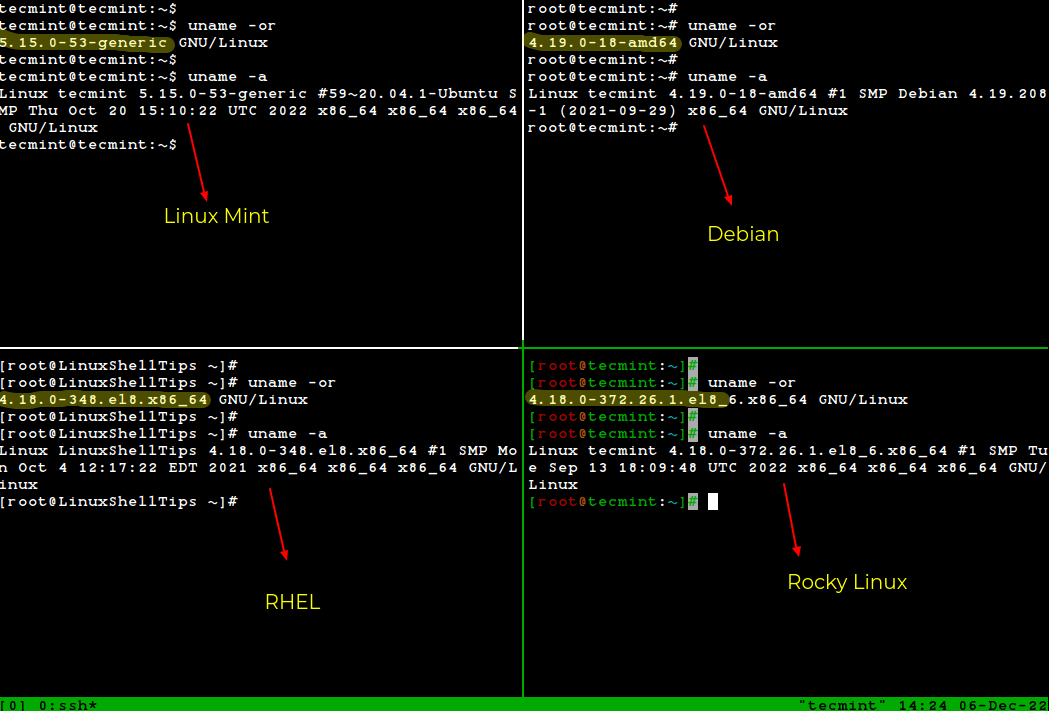
The uname command is the quickest way to check your Linux kernel version and system information, as this command displays essential details such as kernel version, release name, network hostname, machine hardware name, processor architecture, and operating system.
To find out which Linux kernel version you’re running, type:
uname -or
In the command above, the option -o prints the operating system name, and -r prints the kernel release version.
You can also use the -a option to display all available system information at once:
uname -a
Method 2: Check Kernel Version Using /proc/version File
The /proc filesystem stores real-time information about running processes and system details. It’s automatically mounted at boot time and provides another reliable way to check your kernel version.
To view your system information, including the kernel version:
cat /proc/version
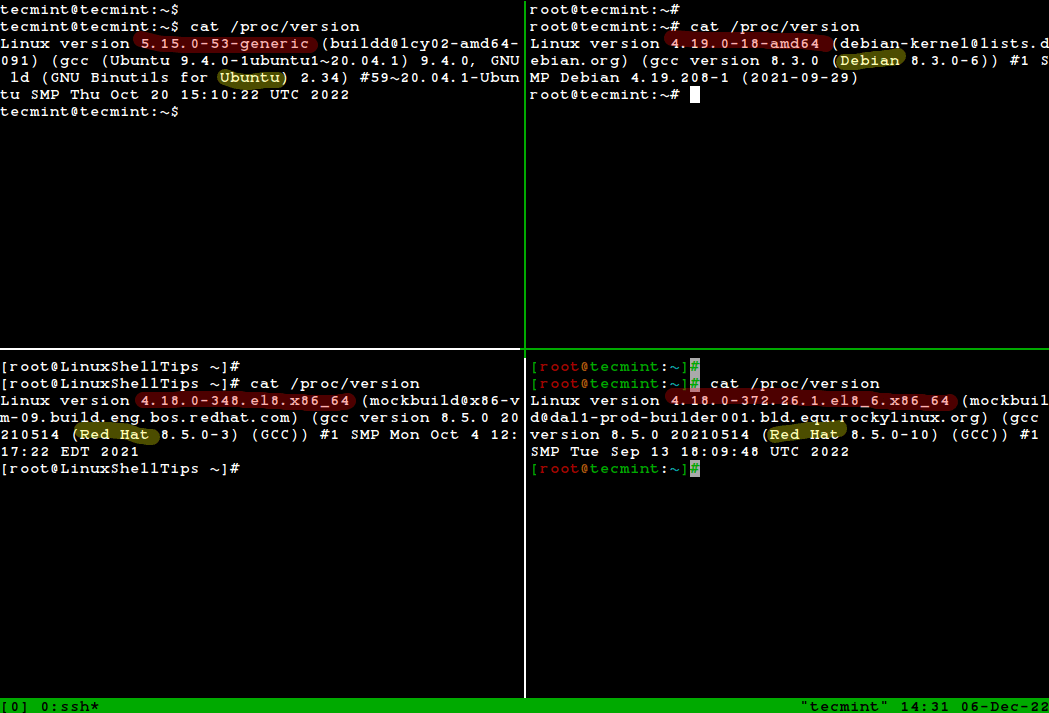
From this output, you can identify:
- A version of the Linux (kernel) you are running: Linux version 5.15.0-53-generic
- Name of the user who compiled your kernel: [email protected]
- A version of the GCC compiler used for building the kernel: gcc version 20.04.1
- Type of the kernel: #1 SMP (Symmetric MultiProcessing kernel) supports systems with multiple CPUs or multiple CPU cores.
- Date and time when the kernel was built: Thu Oct 20 15:10:22 UTC 2022
Method 3: Find Linux Distribution Name and Release Version
The most reliable way to determine your Linux distribution name and version is by using the /etc/os-release file, which works across virtually all modern Linux distributions.
Using /etc/os-release file:
cat /etc/os-release # Works on most Linux distributions
For specific distributions:
cat /etc/os-release         # Debian, Ubuntu, Linux Mint
cat /etc/os-release         # RHEL, CentOS, Fedora, Rocky Linux, AlmaLinux
cat /etc/gentoo-release     # Gentoo Linux
cat /etc/os-release         # Alpine Linux
cat /etc/os-release         # Arch Linux
cat /etc/os-release         # OpenSUSE
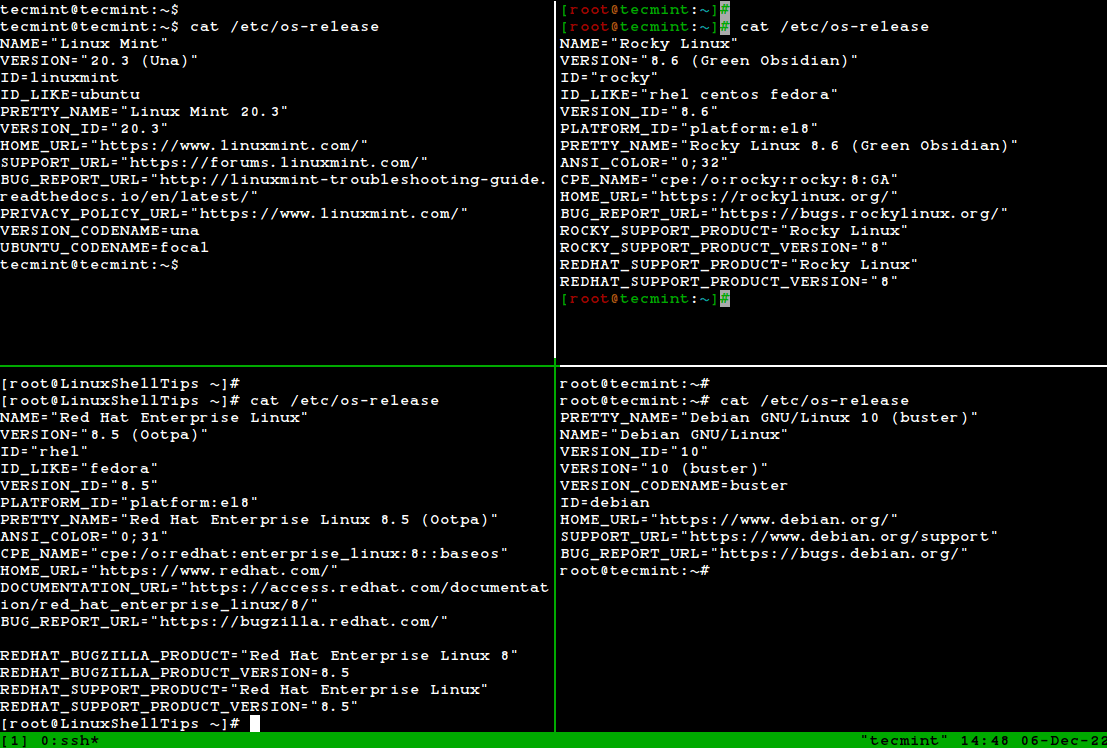
This gives you complete information about your distribution, including the name, version, codename, and family.
Method 4: Check Linux Version Using lsb_release Command
The lsb_release command displays LSB (Linux Standard Base) information about your Linux distribution, and it provides standardized output across different distributions.
Note: The lsb_release command is not installed by default on all systems, so you need to install it using your package manager:
sudo apt install lsb-release         # Debian, Ubuntu, Linux Mint
sudo yum install redhat-lsb-core     # RHEL, CentOS, Fedora, Rocky Linux, AlmaLinux
sudo dnf install redhat-lsb-core     # Fedora, RHEL 8+, Rocky Linux, AlmaLinux
sudo emerge -a sys-apps/lsb-release  # Gentoo Linux
sudo apk add lsb-release             # Alpine Linux
sudo pacman -S lsb-release           # Arch Linux
sudo zypper install lsb-release      # OpenSUSE
Once installed, run the command to display distribution information:
lsb_release -a
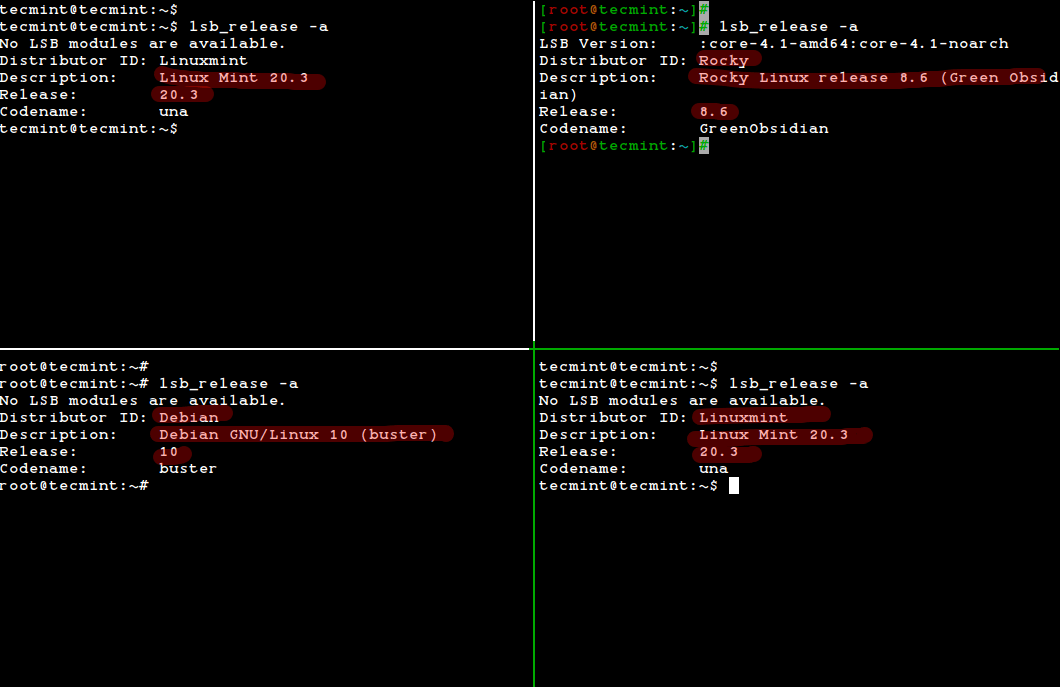
You can use specific options for targeted information:
lsb_release -d    # Description only
lsb_release -r    # Release number only
lsb_release -c    # Codename only
Method 5: Display System Info Using hostnamectl Command
The hostnamectl command is a systemd utility that displays detailed operating system information, and it is available on all modern Linux distributions that use systemd (which includes most current distributions).
hostnamectl
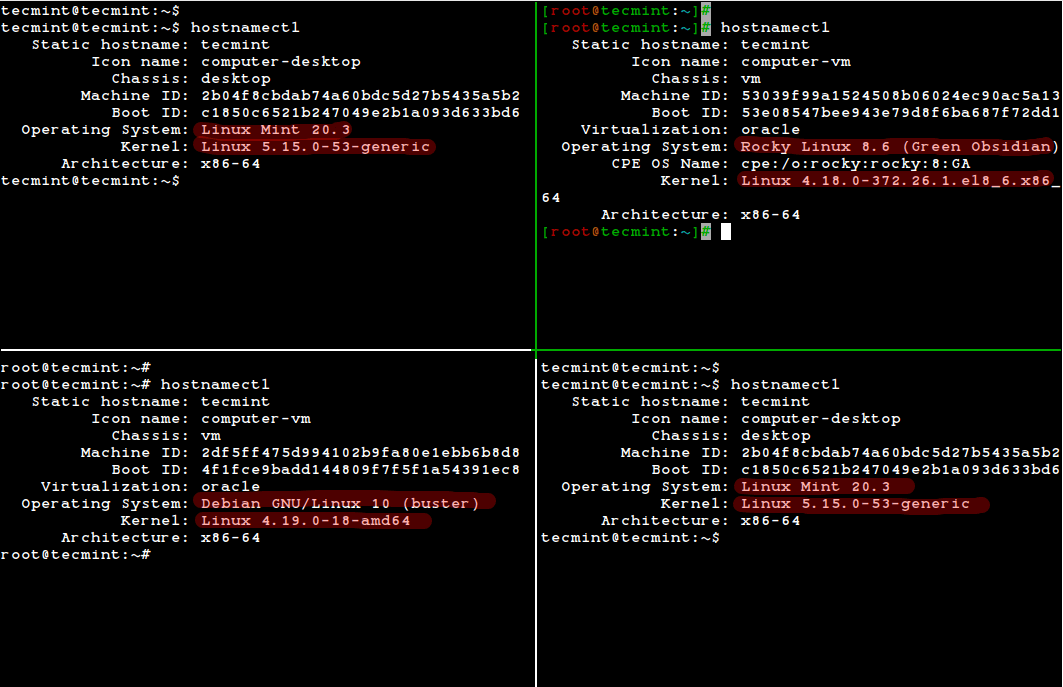
This command provides comprehensive information, including:
- Operating system name and version.
- Kernel version.
- System architecture.
- Hardware details.
- Machine and boot IDs.
Method 6: Check Distribution-Specific Release Files
Some Linux distributions maintain their own release files with version information and are distribution-specific commands:
cat /etc/redhat-release    # RHEL, CentOS, Fedora, Rocky Linux, AlmaLinux
cat /etc/debian_version    # Debian
cat /etc/lsb-release       # Ubuntu (older versions)
cat /etc/arch-release      # Arch Linux
Quick Reference: Essential Commands Summary
Here’s a quick reference table for all the methods covered:
| Command | What It Shows | Best For |
|---|---|---|
uname -r |
Kernel version only | Quick kernel check |
uname -a |
Complete system info | Comprehensive overview |
cat /proc/version |
Kernel build details | Detailed kernel info |
cat /etc/os-release |
Distribution details | Most reliable method |
lsb_release -a |
LSB-compliant info | Standardized output |
hostnamectl |
OS and hardware info | Systemd-based systems |
I’ve used the tmux terminal multiplexer for accessing multiple Linux terminal sessions simultaneously in a single terminal window.
Conclusion
In this guide, we covered six different methods to find your Linux distribution name and kernel version from the command line. The /etc/os-release file method is the most universal and reliable approach, while uname provides the quickest way to check kernel information.
For advanced system monitoring and hardware information, you might also want to explore tools like screenfetch, or inxi, which provide beautifully formatted system summaries.
Have questions or tips about checking Linux versions? Share them in the comments below!