When someone visits your website, their browser and your server exchange information back and forth. Without encryption, this conversation happens in plain text, meaning anyone monitoring the network could read everything: login credentials, personal messages, payment information, all of it.
An SSL certificate solves this by enabling HTTPS, which encrypts all data between the browser and your server. The little padlock icon in your browser’s address bar? That’s telling you the connection is encrypted and secure.
For years, getting an SSL certificate meant paying a certificate authority annually and going through a tedious manual setup process. Then Let’s Encrypt came along and changed everything. It’s a free, automated certificate authority that exists for one purpose: making encrypted connections the default across the entire web.
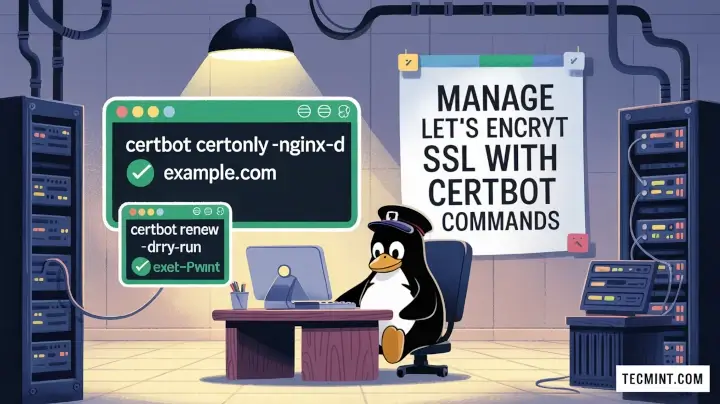
But here’s the thing: while Let’s Encrypt certificates are free, they expire every 90 days. Managing renewals manually would be a nightmare, which is exactly why Certbot exists, which is a command-line tool that automates the entire process of obtaining, installing, and renewing Let’s Encrypt certificates.
In this guide, we’ll walk through everything you need to know about using Certbot, from your first certificate installation to understanding renewal processes, all explained in a way that makes sense even if you’re just getting started with Linux servers.
Installing Certbot in Linux
The certbot installation process varies slightly depending on your Linux distribution, but it’s straightforward across the board.
For Debian-based systems, you’ll first want to make sure your system is up to date:
sudo apt update
sudo apt upgrade
Then install Certbot along with the plugin for your web server, if you are using nginx.
sudo apt install certbot python3-certbot-nginx
Or if you’re running Apache.
sudo apt install certbot python3-certbot-apache
For RHEL-based distributions, the process looks similar but uses dnf instead:
sudo dnf install certbot python3-certbot-nginx    # For Nginx
sudo dnf install certbot python3-certbot-apache   # For Apache
The web server plugins are important because they let Certbot automatically configure your server for HTTPS. Without them, you’d have to manually edit configuration files, which is exactly the kind of tedious work Certbot is designed to eliminate.
Getting Your First SSL Certificate
Once Certbot is installed, obtaining a certificate is remarkably simple.
For an Nginx server, the command looks like this:
sudo certbot --nginx -d example.com -d www.example.com
If you’re using Apache, the command is nearly identical:
sudo certbot --apache -d example.com -d www.example.com
When you run the above command for the first time, Certbot will ask for your email address, which is important to know that while Let’s Encrypt used to send expiration notices via this email in the past, they have since discontinued that service to minimize data retention. Therefore, you must rely on a reliable automation renewal process or set up your own third-party monitoring for expiration alerts.
After that, Certbot does its work: it communicates with Let’s Encrypt, proves you control the domain, obtains the certificate, and modifies your Nginx configuration to use HTTPS.
Understanding SSL Certificate Renewal
As I mentioned earlier, Let’s Encrypt certificates expire every 90 days, so it’s essential to set up an automated renewal process. A systemd timer can handle this by checking twice a day for any certificates that are nearing expiration. When a certificate has fewer than 30 days remaining, Certbot automatically renews it without requiring any manual intervention.
You can test this renewal process without actually renewing anything:
sudo certbot renew --dry-run
The --dry-run flag simulates the renewal process, which is useful for making sure everything is configured correctly. If the command succeeds, you can trust that automatic renewals will work when the time comes.
To see when your certificates expire and check their renewal status:
sudo certbot certificates
You can check the timer status to confirm it’s active:
sudo systemctl status certbot.timer
Managing Multiple SSL Certificates
As you add more domains or subdomains to your server, you’ll accumulate multiple certificates, but certbot makes this surprisingly manageable.
To add a new domain to an existing certificate:
sudo certbot --nginx -d example.com -d www.example.com -d blog.example.com
If you want to obtain a completely separate certificate for a different domain:
sudo certbot --nginx -d another-domain.com -d www.another-domain.com
Each certificate is managed independently, but all renewals happen automatically through the same renewal process.
Renewing SSL Certificates Manually
While automatic renewal is the whole point of using Certbot, there are times when you might want to force a renewal manually. Maybe you’ve made configuration changes and want to test them, or perhaps you’re troubleshooting an issue.
To renew all certificates that are due for renewal run the following command, which will renews only the certificates that are within 30 days of expiring and certificates with more than 30 days left will not be renewed.
sudo certbot renew
If you need to force renewal regardless of expiration date:
sudo certbot renew --force-renewal
Viewing Your SSL Certificates
Sometimes you need to see the details of what certificates you have installed, for example each certificate’s name, the domains it covers, its expiration date, and the file paths where the certificate and private key are stored.
sudo certbot certificates
The actual certificate files live in /etc/letsencrypt/live/, with separate directories for each certificate. Inside you’ll find symbolic links to the actual certificates, which are versioned in the archive directory.
Revoking SSL Certificates
If a certificate’s private key is ever compromised, or if you no longer need a certificate, you should revoke it, and it immediately tells browsers and other clients that the certificate should no longer be trusted, even if it hasn’t expired yet.
To revoke a certificate:
sudo certbot revoke --cert-path /etc/letsencrypt/live/example.com/cert.pem
You’ll need to specify the path to the certificate file you want to revoke.
sudo certbot revoke --cert-path /etc/letsencrypt/live/example.com/cert.pem --delete-after-revoke
Certbot will communicate with Let’s Encrypt to revoke the certificate and, optionally, clean up the local files.
Deleting SSL Certificates Without Revoking
Sometimes you want to remove a certificate from your system without revoking it. Maybe you’ve moved a domain to another server, or you obtained a certificate accidentally and never used it.
sudo certbot delete --cert-name example.com
This removes the certificate files from your system but doesn’t revoke the certificate with Let’s Encrypt. The certificate remains valid if it’s being used elsewhere, but Certbot will stop managing it on this server.
Fixing Certbot Certificate Renewal Problems
Even with Certbot’s automation, you might occasionally run into issues, and here are the most common ones and how to resolve them.
If certificate renewal fails, check that your web server is running and accessible from the internet, because Let’s Encrypt needs to reach your server on port 80 or 443 to verify domain ownership.
You can check the renewal logs for specific error messages:
sudo cat /var/log/letsencrypt/letsencrypt.log
These logs show exactly what Certbot attempted and where it failed, which usually points you directly to the problem.
If your web server configuration gets messed up somehow, Certbot can sometimes restore the original configuration:
sudo certbot --nginx rollback
This reverts changes made by Certbot, though it’s rarely needed if you’re using the automatic configuration options.
Understanding Rate Limits
Let’s Encrypt has rate limits to prevent abuse. For normal use, you’ll never hit them, but it’s worth knowing they exist. You can request up to 50 certificates per registered domain per week, and each certificate can cover up to 100 subdomains.
If you’re testing or learning, use the --dry-run flag liberally, which simulates the entire process without actually requesting certificates, so it doesn’t count against rate limits.
sudo certbot renew --dry-run
Keeping Certbot Updated
Like any software, Certbot receives updates that fix bugs and add features, so it is important to keep your certbot updates through your normal package manager:
sudo apt update
sudo apt upgrade certbot
Moving Beyond Basic Usage
Once you’re comfortable with basic certificate management, Certbot offers advanced options worth exploring. You can use DNS validation instead of HTTP validation, which allows you to obtain certificates even for servers not publicly accessible on port 80 or 443.
You can configure custom renewal hooks to run scripts when certificates are renewed, useful for restarting services or updating configurations. You can even obtain wildcard certificates that cover all subdomains at once.
But for most use cases, the straightforward commands we’ve covered handle everything you need. Certbot takes what used to be a complex, error-prone process and reduces it to a few simple commands that just work.