In this guide, we’ll explain what claude-desktop-debian is, how to build the native package without wine, and how to connect MCP servers on Linux.
Anthropic ships Claude Desktop for Windows and Mac, but Linux users have been stuck with the web browser for over a year.
The claude-desktop-debian project fixes that by repackaging the official Windows build into a native .deb or .AppImage that runs without Wine, without containers, and without the lag of a browser tab.
You have been running Claude in a browser tab. It drains battery, eats RAM, and every time Chrome crashes you lose your conversation history. There is a better way, and it has been hiding on GitHub.
The aaddrick/claude-desktop-debian project is a set of build scripts that takes the official Claude Desktop Windows installer, extracts the Electron app inside it, swaps out the Windows-specific native modules for Linux equivalents, and repackages the whole thing into a proper Linux binary.
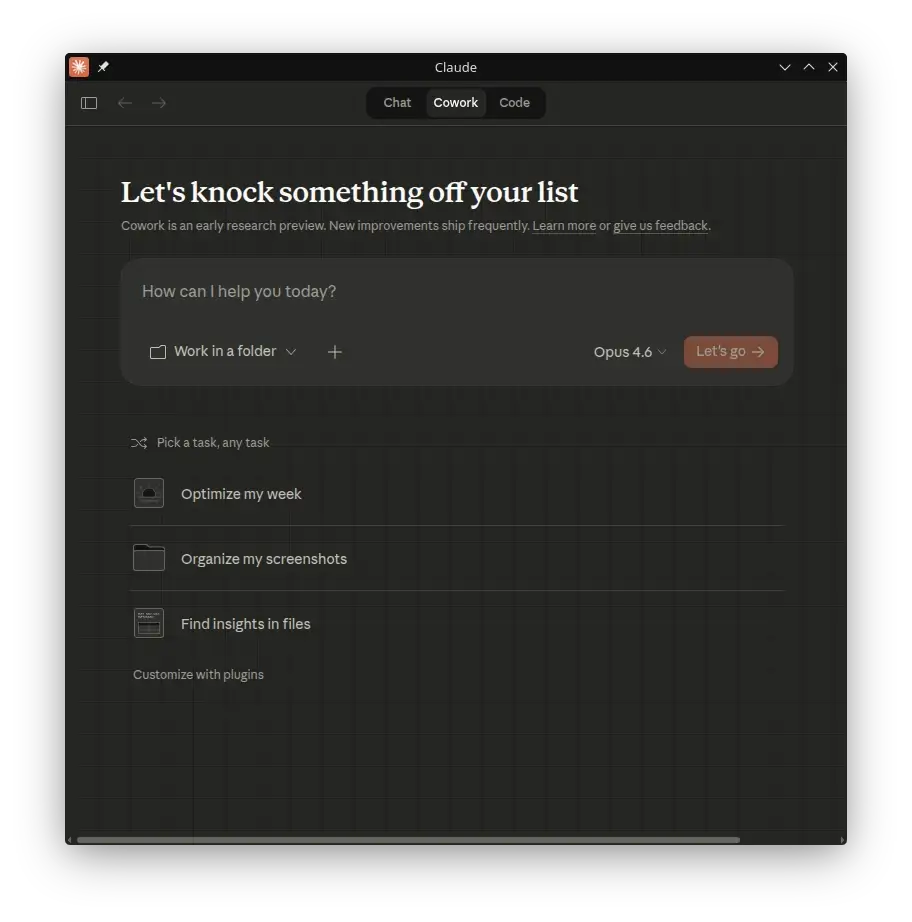
The result is a native desktop app that feels identical to the Mac and Windows versions, with full support for Model Context Protocol (MCP) servers, global hotkeys, and system tray integration.
What This Tool Actually Does
Claude Desktop is Anthropic’s official desktop client for their Claude AI assistant that gives you a dedicated window outside the browser, persistent conversations, and access to MCP servers, which are small programs that let Claude read your files, run commands, or connect to tools like GitHub and Slack, but the web version of Claude does not support MCP at all, so the desktop app is the only way to use these features on Linux.
The build script does three things under the hood. It downloads the official Windows .exe installer from Anthropic, extracts the Electron application bundle (the cross-platform part that would run on any OS), and replaces the Windows .node native modules with Linux-compiled equivalents built from the same source. It then wraps everything in a .deb package or an .AppImage so you can install it like any other Linux app.
And because the app is pure Electron under the hood, it runs natively on X11 and Wayland, supports both Intel and AMD CPUs, and works on ARM machines like the Raspberry Pi 5.
Why It Beats the Alternatives
The closest alternative is running Claude Desktop under Wine, which is a compatibility layer that translates Windows system calls to Linux ones.
Wine works, but it is slow, the fonts look wrong, clipboard integration breaks, and MCP servers fail silently because Wine’s subprocess handling is flaky. The second alternative is Docker, but running a GUI app in a container adds complexity most users do not need.
This project gives you a real .deb file you install with apt command, a real desktop entry in your application menu, and a real system tray icon. There is no emulation layer, no container, and no surprise breakage when your distro updates.
Install Claude Desktop on Ubuntu and Debian
First, you need to install nodejs, npm, and a few basic build tools and then clone the repository and run the build script.
sudo apt update && sudo apt install -y git libfuse2 imagemagick p7zip-full icoutils
curl -fsSL https://deb.nodesource.com/setup_current.x | sudo -E bash -
sudo apt install -y nodejs
git clone https://github.com/aaddrick/claude-desktop-debian.git
cd claude-desktop-debian
./build.sh --build deb --clean yes
sudo dpkg -i claude-desktop_*.deb
Install Claude Desktop on RHEL, Rocky Linux, and Fedora
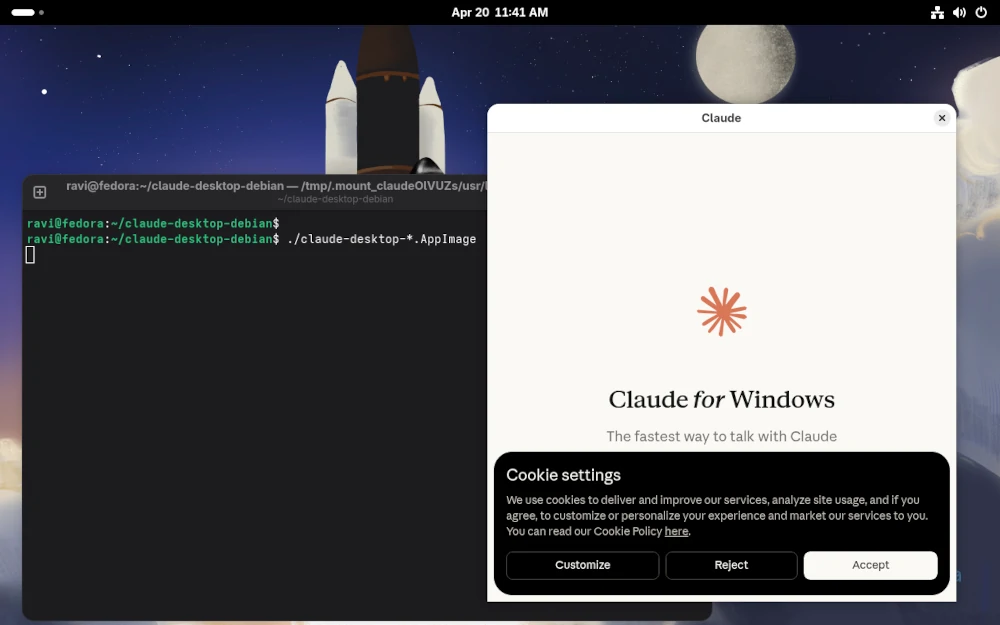
The Debian project does not ship an .rpm, but the .AppImage format works on every RHEL-based distro without any packaging.
sudo dnf install -y git ImageMagick p7zip icoutils fuse fuse-libs
curl -fsSL https://rpm.nodesource.com/setup_current.x | sudo bash -
sudo dnf install -y nodejs
git clone https://github.com/aaddrick/claude-desktop-debian.git
cd claude-desktop-debian
./build.sh --build appimage --clean yes
chmod +x claude-desktop-*.AppImage
./claude-desktop-*.AppImage
Hook Up an MCP Server in Claude
Once the app is running, you can point it at an MCP server to give Claude real capabilities. The config file lives at ~/.config/Claude/claude_desktop_config.json. Here is how to add the official filesystem server so Claude can read and write files in a specific directory.
mkdir -p ~/.config/Claude
cat > ~/.config/Claude/claude_desktop_config.json << 'EOF'
{
  "mcpServers": {
    "filesystem": {
      "command": "npx",
      "args": ["-y", "@modelcontextprotocol/server-filesystem", "/home/ravi/Documents"]
    }
  }
}
EOF
Restart the app, and in the chat input you will see a small hammer icon, simply click it to confirm the server is loaded.
Connected MCP servers:
  filesystem: @modelcontextprotocol/server-filesystem
  Tools: read_file, write_file, list_directory, search_files
That output means Claude can now read files from your Documents folder, list directory contents, and write new files when you ask it to. The common beginner mistake is giving the server access to your entire home directory, which is a security risk because Claude could read SSH keys or browser cookies. Always scope MCP filesystem access to a single project folder.
How to Update Claude Desktop in Linux
Anthropic pushes Claude Desktop updates every few weeks, and the build script pulls the latest Windows installer each time you run it. Rebuild the package when you want the newest version, then reinstall over the top.
On Ubuntu/Debian:
cd claude-desktop-debian
git pull
./build.sh --build deb --clean yes
sudo dpkg -i ./build/electron-app/claude-desktop_*.deb
On RHEL/Rocky Linux/Fedora:
cd claude-desktop-debian
git pull
./build.sh --build appimage --clean yes
chmod +x claude-desktop-*.AppImage
mv ./claude-desktop-*.AppImage ~/Applications/claude-desktop.AppImage
The dpkg tool handles the upgrade in place, keeps your config file, and preserves your conversation history stored in ~/.config/Claude/.
On RHEL-based distros there is no package manager step, because the AppImage is a single self-contained file. You rebuild it, make it executable, and move it into ~/Applications/ (or wherever you keep your AppImages) so it overwrites the old binary. Your config and chat history live in ~/.config/Claude/ either way, so nothing gets lost.
If you hit a signature or checksum mismatch on either distro, delete the build/ directory and rerun the script, because a half-downloaded installer will corrupt the extraction step.
Conclusion
You learned what the claude-desktop-debian project is, why it beats running Claude Desktop under Wine, and how to build the native package on both Debian-based and RHEL-based distros.
You also saw how to wire up an MCP server so Claude can actually interact with your filesystem, which is the feature that makes the desktop app worth installing in the first place.
Go build the package right now and connect the filesystem MCP server to a single project folder on your machine. Spend 10 minutes asking Claude to read a config file, explain what it does, and suggest improvements. You will immediately feel the difference between a chat window and a real AI assistant with access to your system.
Have you tried running Claude Desktop on Linux yet? Which MCP servers are you planning to connect first, and did the build script work cleanly on your distro? Tell us in the comments below.